
Do you know why WordPress backup before update is crucial? An update can break your website without any warning.
Updates are crucial for WordPress websites’ security and performance. They can bring stability, improve site security, and introduce new features. You can also fix bugs when you update your website.
While updates are essential, they can create problems for your website. A theme update, for example, can override your design customization. Core updates can cause database issues. Even a plugin update may conflict with your theme.
So, why should you back up before changing themes, plugins, or installing core updates? Here, we discussed the reasons and how WP Managify makes WordPress backup effortless.
Why Is WordPress Backup Before Update Important?
Backing up a WordPress website before launching an update will protect your website in case something goes wrong during the update. For instance, a simple WordPress core update can cause database issues that could disrupt your website. If such happens, you can restore your website to its pre-update state.
Now, let’s go deeper to explain why a backup before every update is a genius move to secure your website.
Theme update can break your website design:
It’s a huge risk not to back up before changing themes. You could end up with a dysfunctional website.
Themes control:
- Sliders
- Colors
- Layout
- Menus
- Widgets
- Homepage sections
A theme update can bring massive changes to a website. It can:
- Reset website theme settings
- Get rid of custom CSS
- Change the footer and header structure
Proper backup can help you avoid issues you may encounter during a simple theme update. You can easily restore your website to its previous state even when you run into trouble while updating a theme.
Prevent plugin and theme conflict:
Have you ever tried updating or redesigning your website and ended up with a crashed website? In most cases, you’ll experience a functionality error or broken layout.
The issues mentioned probably happened due to a conflict between your plugin and theme. The installed plugin may not be compatible with the theme.
How can you identify a website experiencing plugin and theme conflict?
Watch out for these signs:
The White Screen of Death (WSOD) will appear. It usually appears as a blank white screen. This indicates a theme-plugin conflict. It’s an indication that you have a critical error to fix.
Broken layout: Your website will appear misaligned after the update. You could even experience missing content. You have a theme and plugin conflict to deal with. That’s what this error message indicates.
Error Message: The most audible notification is the error message. You will find a message like “There has been a critical error on this website.” The message indicates that you have a theme and plugin issue to address. Restoring your backup is a simple solution to reinstate your website to its previous state.
Features not working correctly: When several features stop working after an update, bear in mind that you’re dealing with a plugin and theme conflict.
These are signs of conflict between plugins and themes. The solution would be to restore the backup. But that will depend on whether you back up WordPress before plugin update.
With Management platforms like WP Managify, it’s easy to back up websites these days. So there’s no excuse for failing to back up before changing the theme, updating the website core, or a plugin.
Aside from proper backup, here are other preventive measures you need to take to prevent theme and plugin conflicts:
Update themes and plugins strategically: You need to be strategic when updating plugins and themes on your website. How? Run your updates one at a time.
There’s no benefit in rushing through website updates. You have to test website functionality after every update. Only launch the next update if there are no issues with the previous ones.
Test updates and design changes before implementing them on your live website: You can test the theme to confirm it’s working correctly before deploying the changes.
The reason for testing on a staging site is to identify potential conflicts that could result from the update or design changes. This test will not only reveal the issues but also allow you to rectify them before implementing the changes on your live site.
Avoid compatibility issues: These are common problems encountered during WordPress updates. However, a simple check can help you avoid it.
Always check for the latest updates to see if they are compatible with your plugins, themes, and the current version of WordPress.
How To Determine Theme and Plugin Compatibility To Avoid Conflict
The first reason to back up WordPress before updating is to prevent theme and plugin conflicts. This issue usually arises when the plugin isn’t compatible with the theme.
Here’s how you can determine theme and plugin compatibility before updating.
Check plugin documentation and changelog:
The first step is to check each plugin’s changelog and documentation. The essence is to know which plugins are compatible with the current WordPress version.
Check recent updates and repository:
Another way you can determine theme and plugin compatibility is check the plugin’s recent updates and repository. There, you’ll find the compatibility information you need to make an informed decision.
Review code for outdated APIs and deprecated functions:
If you’re using custom plugins or themes, endeavor to review their code. Watch out for outdated APIs and deprecated functions that may break with the new version of WordPress.
Make a list of all the plugins, themes, and custom components. Include the compatibility statuses of each.
This approach will help you identify compatibility issues that could lead to conflicts before they occur. With that, you can deploy the ideal replacements or updates to ensure your website works correctly.
High possibility of data corruption or loss during update:
You can experience data loss or corruption when updating a WordPress website. Even people with WordPress experience can encounter the same issue.
Data loss or corruption during an update is a critical issue. It can negatively impact your website’s functionality. In most cases, your website could function partially or experience lengthy downtime.
You clearly don’t want this to happen. No website owner would want to experience such. Unfortunately, it can happen without warning.
These are situations that can lead to data loss or corruption when updating a WordPress website:
Server crash or hardware failure during update:
A server or hardware crash during an update can impact your website’s functionality. It can leave your website with corrupted data or a database.
Interrupted update:
An interruption during an update can make your website unstable. This situation can leave you with a corrupt database or files.
Manual error:
Mistakes made while redesigning or updating your website manually can lead to data loss. Such mistakes can be due to incorrect permissions configuration settings.
Theme or plugin conflict:
Having poorly coded or incompatible plugins or themes on a website can be problematic, particularly during updates. It can interfere with the update process, leading to data loss.
How to prevent data loss:
A simple solution would be to run a WordPress backup before an update. With proper backups, you can restore your website when an issue arises during an update.
Another way to prevent data loss or corruption is to use a well-known plugin. You can reduce or eliminate compatibility issues by using plugins or themes from a reliable provider.
Thirdly, always test your redesigns and updates before deploying them. You can test them on a staging environment before deploying them on your live website. That way, you can identify and resolve potential issues in your backups before they occur.
Finally, monitor your server health. This move is essential to ensure a smooth update. Ensure your server is stable and meets the requirements to run an update before initiating one.
Pro Tip: Of all the preventive steps discussed, the most effective is regular WordPress backup. Backing up your website before an update is an important security measure. You can restore your website to its previous state even when you encounter data loss or corruption during an update.
WordPress core update and compatibility challenges:
Updating to the latest WordPress core version is an important security measure for every website. WordPress websites running older versions are potential targets for hackers.
According to a Hostinger report, 9 out of 10 WordPress websites are running the latest version, 6. The latest version of WordPress usually includes enhanced security, new features, and improved performance.
While updating WordPress core is an important step to safeguard a website, plugin and theme compatibility can be an issue. The new version might not be compatible with the plugins or theme, leading to a broken layout, a site crash, or malfunctions.
What could happen if you experience a theme or plugin conflict following a WordPress core update?
When a theme or plugin conflicts with a core update, it can have a damaging impact on your website. Here is what could happen:
- The whole website may collapse
- You may have a corrupt database
- You may start to notice the white screen of death (WSOD)
- Your website’s login page may stop functioning
Apart from plugins and theme compatibility with the new WordPress version, core updates can modify several aspects of your website. These include:
- User roles
- System files
- Security layers
- Database schema
- Editor functionality
How to prevent plugin and theme compatibility issues with the new WordPress core update:
What step can you take to ensure updating to the latest WordPress version doesn’t affect your website’s function? Here are the steps:
Regular backup: There is an assurance that comes with regular backups. You’ll feel confident that everything will be okay even when your website crashes. You can restore your website to its previous state (the last update before disaster struck).
Update plugins and themes: Your plugins or themes aren’t compatible with the new WordPress version, so they’ll become outdated before you update them. The solution is to update your plugins and themes. After that, consider the next step.
Test updates before deployment: Use a staging environment to test them. This step will help you identify potential issues with the update and give you an idea of the next steps.
Check for errors after an update: Always monitor your website. The reason is to ensure it’s working correctly. If it isn’t, you can restore your website from the backup.
Always backup before WordPress core update. This will ensure you can restore your website to its previous state even if an error occurs during or after an update.
Manual fixes are expensive and time-consuming:
There is a common proverb that says, “Prevention is better than cure.” In other words, it’s cheaper to prevent a disease than to cure it.
It’s cheaper and easier to back up a WordPress website before an update than to skip it. You will experience downtime and revenue loss when a disaster happens, and you don’t have a backup.
Fixing a broken website manually is expensive, tedious, and time-consuming. You will:
- Lose customers
- Hire a website developer
- Experience a revenue drop
- Website SEO could drop
Google may also strike. The search engine giant could deindex broken pages.
You could fix all these challenges within a few minutes. You won’t need to hire a developer to fix your website if you have always been backing up WordPress before updates. You can easily restore your website yourself (you don’t need to be tech-savvy) even when a disaster happens during or after the update.
Avoid permanent data loss:
Running a WooCommerce site with high user activity without backup is a considerable risk. You could lose important data.
You run the risk of losing:
- Payment logs
- Customer orders
- Membership data
- Subscription records
- Subscription records
- Learning progress in LMS
You can preserve everything on your website with regular, thorough WordPress backups.
How To Backup WordPress Before An Update Fast
A quick way to back up WordPress is via a centralized dashboard. You can automate and schedule your WordPress backups from a single dashboard. You don’t need to lift a finger after the first setup.
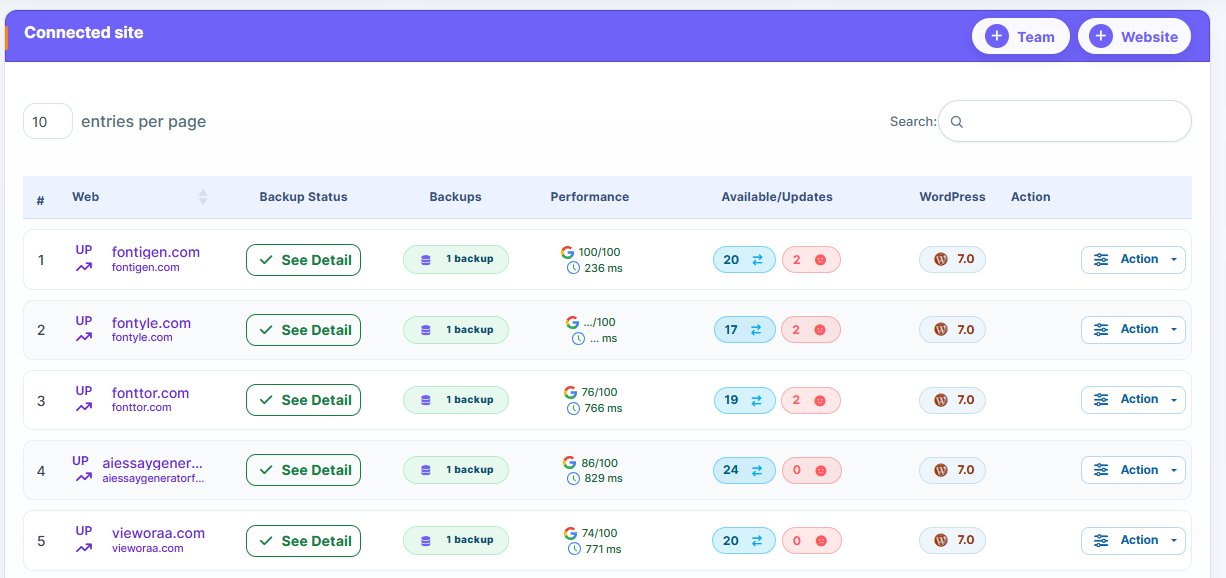
With platforms like WP Managify, you can back up WordPress more quickly and easily. You can also run security scans, monitor uptime, and back up multiple websites with ease.
The manual WordPress backup takes time. You might even forget to back up your website. Imagine a cyberattack happening right before your update. You’ll spend more time and money restoring your website to its previous state.
When To Backup WordPress Before Updates
Why regular backups are essential: there are moments you shouldn’t miss.
Backup WordPress before plugin update:
Always back up your plugins before updating. Why? Plugins are the leading causes of update failure.
These are the plugins considered high-risk:
- Yoast SEO
- Elementor
- LMS plugin
- WooCommerce
- WPBakery
- Security plugins
- Contact Form 7
- Membership plugins
Because these plugins can affect a website significantly during updates, it’s essential to back up your WordPress website before updating.
Back up your website before you update, regardless of the plugin you’re updating. All plugins can disrupt your updates, potentially causing significant issues with your website.
Backup before WordPress core update
Always back up your WordPress website before initiating a core update. The reason is that core updates can alter your website:
- WP-includes
- Core function
- WP-admin
- Database structure
Backup before changing the theme:
Why do you need to back up WordPress before theme changes? The reason is that themes can overwrite several site functions and files. It can overwrite your website:
- CSS files
- Functions
- Templates
- Widget layouts
- Custom style settings
Backup your WordPress before theme change. This act will help preserve your design work.
Backup before editing code:
While code editing is vital, it can completely break your website. That’s why you must back up before editing:
- .htaccess
- wp-config.php
- Functions.php
- Theme template files
Even if things go wrong after code editing, you can restore your website. That’s the benefit of WordPress backup before editing. Management platforms like WP Managify even make backup and restoration a breeze.
Backup before plugin update and installation:
Backing up before installing a new plugin is also essential. Why? The new plugin may conflict with your server or theme. But when you back up, you can restore if the plugin breaks your website.
Backup WordPress before migrating or changing hosting:
You should back up your WordPress website before moving to another hosting provider. Understand that changing the host can corrupt:
- File paths
- File permissions
- Database entries
You’re guaranteed a safe migration when you run a full backup. How? You can migrate to another host without fear, knowing you can easily restore your website if things go wrong.
Complete WordPress Backup: What It Includes
What will you find in a complete WordPress website backup? How do you know your backup is complete? You’ll know by the content of your backups.
In a full backup, you’ll find all the components your website needs to function correctly.
You will find the WordPress files and database in a complete WordPress backup. But which component should you categorize as a file and which as a database?
WordPress Files:
The files include:
- Plugins
- Themes
- .htaccess
- Media files
- Wp-config.php
- Uploads folder
- Custom scripts
- WordPress core files
- Child theme modifications
WordPress Database:
Database stores the following:
- Posts
- Pages
- Users
- Settings
- Widgets
- Comments
- SEO metadata
- Menu structure
- Theme configurations
- Plugins configurations
- WooCommerce orders
Database backup is essential. You need your database to enable your website to function correctly.
What Backup Type Is Best Before Updates?
The best backup to conduct before running an update is a full backup. Here, you back up your files and database.
It’s essential to have a complete snapshot of your website before an update. After the full backup, you can deploy incremental backups for daily protection.
FAQs About WordPress Backup Before Update
Why should I backup WordPress before every update?
Backup protects your website. It makes it so easy to restore a website to its previous state or most recent backup when disaster strikes. Backups are like an insurance policy. They help you feel confident about the safety and activeness of your website.
Is manually backing up WordPress before a plugin update important?
No, manual backup isn’t the most important. The strategy requires technical knowledge. It’s also error-prone, and time-consuming. There are several ways you can back up WordPress before a plugin update. However, using a centralized WordPress management platform has become one of the most desirable options. That’s where tools like WP Managify come in, and has been the go-to backup tool for many WordPress professionals over the years. It’s best to use such reliable management platforms for WordPress backup.
Should I back up WordPress before changing theme?
Yes, run a full backup before changing your theme. A theme change will overwrite your website design and layout. When you back up before changing your website theme, you can restore the site to its previous state if things don’t go well.
How often should I back up my WordPress website?
You should back up your WordPress website:
- Before initiating updates: These include plugins, themes, and WordPress core updates.
- Initiate regular backup: Set daily backups for high-activity websites. You can set an incremental backup for your WooCommerce store.
- Before significant changes: Back up your WordPress website before making essential changes such as extensive redesigns, migrations, or new plugin installations.
What should I do if something goes wrong during an update?
If your website crashes or displays an error message after an update, then your update wasn’t successful. If you notice such, quickly restore backup (the most recent backup) to avoid lengthy downtime that could lead to reputational damage and loss of business opportunities.
How do I back up my WordPress website before an update?
You can back up your WordPress website using diverse strategies (automatic and manual):
- Use centralized management dashboard (WP Managify, Solidwp Backup) – Automatic backup
- Use backup plugins – UpdraftPlus, Duplicator, and BackupBuddy.
- Manual backup with cPanel
What is the best way to back up a WordPress website?
The best way to back up a WordPress site is to use a remote backup platform that lets you back up and restore your site even if the site becomes inaccessible. This makes using a centralized WordPress management dashboard a wise choice. Examples of platforms that offer centralized dashboards for backup and easy WordPress site maintenance include WP Managify, MainWP, BackWPup.
Is it safe to back up my website with a web host before the update?
Backing up a WordPress site on the same server isn’t safe. You could lose your website data if anything happens to that server or when it suddenly becomes inaccessible. Backup and store your website data remotely. You can use a platform that provides centralized dashboards, making it easier to manage and back up WordPress sites. Examples include platforms like WP Managify, SolidWP Backup, and Backup WP.
Should I back up my website before core site updates?
Yes, it’s essential to back up your WordPress website before a WordPress core update or any update for that matter. One reason backup is so important is that anything could go wrong with your website. Plugin and theme compatibility issues can develop after the update, causing your website to malfunction. If such a thing happens after a core update, you can easily restore your website to the previous backup. But that can only happen if you were backing up your website.
What are the risks of not backing up my WordPress website before an update?
You risk losing your website permanently or incurring significant financial losses, reputational damage, and worst-case, business closure. Plugin and theme compatibility issues, cyberattacks, accidental data deletion, and update failures are among the problems that could befall a website. But with proper backups, none of these issues will cause lengthy downtime. You’ll be able to restore your website within minutes once it crashes or gets hacked.
Conclusion
Never forget to run WordPress backup before update. It doesn’t matter whether you’re updating your theme, plugins, or core. Always back up your website before updating it. You can use WP Managify, a centralized WordPress management platform that lets you back up and manage an unlimited number of websites from one dashboard.
The reason to backup, as explained, is simple: Anything can go wrong during or after an update. You may experience plugin and theme conflicts with the new WordPress version. Data loss or corruption is another issue that could emerge during or after an update.
With WordPress, you can back up your entire website with a simple yet effective management tool like WP Managify in one click. The platform also enables one-click restoration, making backup and restoration a breeze for website owners.

&media=https://wpmanagify.com/wp-content/uploads/2025/12/Wordpress-Backup-Before-Update.png)