Imagine waking up one day to find your online store gone due to an incomplete or failed update. Now, you’re looking for how to restore WooCommerce after update failed.
Such incidents can be frustrating and demoralizing. But if you’re in such a mess right now, don’t beat yourself up! It happens to even the most experienced WordPress professionals.
You can still recover your WooCommerce store after a failed update using backups. Assume you backed up your online store using the WP Managify platform before the failed update. You can restore your website with a single click. However, we will discuss other ways you can restore your online store after experiencing a failed backup.
Let’s discuss the different ways you can restore your online store using backups after an unsuccessful update.
Why Do Updates Break WooCommerce Store?
Let’s face it: updates are crucial for WordPress websites. They are essential for your online store’s security and smooth operation.
Unfortunately, most updates don’t go as planned. They end up creating problems for your website and don’t offer any real benefits.
An update can cause problems for your WooCommerce store. A simple update can break your website. But how does it even happen?
Before we discuss how you can restore WooCommerce after a failed update, let’s quickly discuss what really causes websites to break after an update.
Plugin conflicts:
Plugins are essential for your WordPress website’s smooth operation. They extend your website’s functionality.
Leaving an outdated plugin on your website can create a backdoor for hackers to gain access to and control it. That’s why plugin updates are crucial.
Unfortunately, specific plugin updates can harm your website. The plugins might conflict with your WordPress core version after an update, causing your website to start malfunctioning or crash.
Pro Tip: Most plugins might stop working or not function properly after an update. And the worst part is, they might cause your website to crash or malfunction.
If your website starts malfunctioning or crashes after a plugin update, note that the plugins are conflicting with your WordPress core version. The best option is to restore your website to its previous state (before the plugin update).
Theme issues:
Themes are also as crucial as plugins. They determine how your online store looks, its visual appeal.
Your theme can conflict with your WordPress core version after an update. And when this happens, your website will appear broken and misplaced.
You don’t want potential customers to find your website in this state, so act fast. Like the plugin update, you can fix theme issues by restoring your website to its pre-update state.
Corrupt core files:
WordPress boasts core files. These files are essential for a WordPress website to function correctly. Unfortunately, the files can become corrupt.
How can WordPress core files become corrupt? It can happen when updating your WordPress core version. An interruption can cause your core files to become corrupt, creating a critical problem for your WooCommerce store.
WordPress core updates are crucial. Hackers can easily gain access to a website that’s still running on an outdated WordPress core version. That’s why it’s necessary to always jump on the latest WordPress version once released.
Additionally, avoid interruption when updating your WordPress core version. That’s what causes the core files to become corrupt. But if they eventually become corrupt, a simple restore will take your website to its previous state.
That’s all you need to fix this problem.
Pro Tip: Always back up your WordPress website before any update. Back up your website before any update.
You can easily restore your website using backups if the update eventually fails.
Outdated PHP version:
PHP is the programming language WordPress runs. But what happens if your hosting server is running an updated version of PHP? It can lead to compatibility issues with your WordPress core version.
Interrupted update:
Your website should crash due to an interrupted update. It can happen when you experience a bad internet connection while updating your website. Plugin conflicts or server-side issues can cause interrupted updates, potentially breaking your WordPress website.
We have highlighted the various issues that could break your WooCommerce store. The solution is the same regardless of the reason your update failed or your website crashed.
Let’s discuss how to recover your WooCommerce store using backups following a failed update.
How To Restore WooCommerce After Update
In this section, we discussed how you can recover a WooCommerce store after a failed update. We discussed how you can recover the website from backups you created and other means. Let’s jump right into it.
Step 1: Use WP Managify – with centralized backup and restore dashboard: (Recommended Method):

If you have been backing up your WooCommerce store on WP Managify, restoring it to the last version before the failed update would help resolve the issue it caused.
Pro Tip: Why recommend WP Managify? You can automate and schedule a backup. Plus, you can back up an unlimited number of WooCommerce stores and monitor uptime.
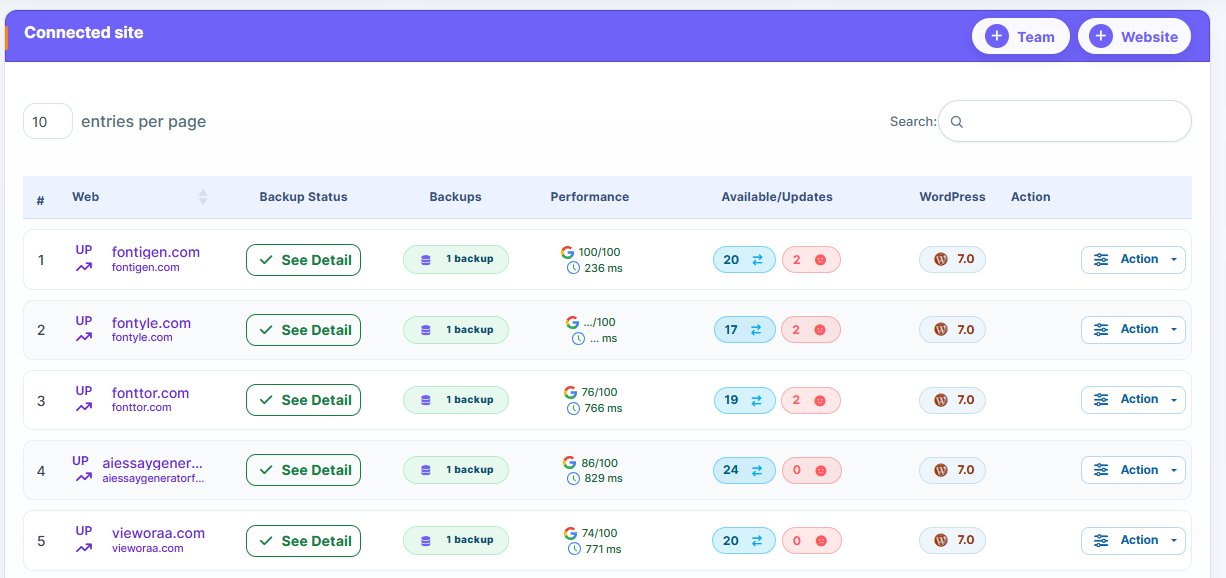
You also have a centralized dashboard that makes backup and restore effortless. In other words, instead of logging into multiple websites individually, you just log in to WP Managify’s centralized dashboard, and there you have it. All the connected websites become yours to update, backup, and monitor.
Here is how to recover a WooCommerce store using backups after a failed update:
Log in to your WP Managify dashboard.
Choose the website you want to restore (vital if you’re backing up multiple websites on the platform)
Choose the backup and follow the steps to recover your WooCommerce store. You can restore the backup to the pre-update state or the last backup.
Pro Tip: Regular backups are vital for quick, easy website recovery. You can’t restore what you failed to back up.
This method will only work if you have a WP Managify account (free or premium) and have backed up your WooCommerce store on the platform.
Here are other ways you can recover your WooCommerce store after a failed update. The steps below include tips for recovering with and without backups.
Step 2: Restore website from backup plugins:
This method will only work if you’re using a plugin to back up your website. You can use UpdraftPlus, VaultPress, or BackWPup.
Here’s what to do if you’re using any of the mentioned plugins:
- Log in to your WordPress dashboard. Note: You have already installed the plugin (VaultPress, BackWPup, or UpdraftPlus) on your WordPress website. Additionally, you have used the plugin to back up your website.
- Head to the backup plugin section
- Now, follow the steps to restore your website to the last backup you created.
You can fix the problem created by the failed update by restoring your website from backup. That is, restoring your website to the last backup.
Step 3: Use backup from your hosting provider:
Assuming you aren’t using WP Managify or a backup plugin (e.g., UpdraftPlus), another way you can recover your WooCommerce store after a failed backup is to use the backup from your hosting provider.
Hosting platforms like SiteGround, WP Engine, and BlueHost offer automated backup. They do this in case a customer wants to restore a backup after a sudden crash.
How can you restore your website from backups available through your hosting provider? The process is straightforward, but not timely:
To begin, contact the hosting provider, as they are experts in handling server-side issues. They can help address issues such as file corruption, server errors, or outdated software.
Pro Tip: This process can take a little more time, which, unfortunately, you might not have. You need your WooCommerce store back online as quickly as possible. Every minute that passes by is a missed sales opportunity.
Another thing about this backup method is the guarantee. You could lose the backups. In a worst-case scenario, they might not have backed up your website before the failed update.
With a centralized dashboard, you won’t have to deal with such problems. You can back up your website effortlessly and be sure you have a backup before initiating the update.
You can even test your backup on a staging website to confirm that it’s useful before proceeding with your update. Unfortunately, your hosting provider won’t do this for you.
Step 4: Plugin and theme deactivation:
Updates are important. Your website won’t function properly without an update. In the same vein, an update can pose a critical problem for your website.
A simple update can cause your theme or plugin to malfunction. You’ll even discover that they are no longer compatible with your WordPress core version. It’s surprising and demoralizing, but it does happen, and you can address the problem.
The first step is to diagnose the issue. You need to know what the problem is before taking action.
Follow the steps below:
- Log in to your WordPress dashboard
- Head to “plugins” then “installed plugins” section.
- Deactivate the plugin. To do this, click on “deactivate” next to the updated plugin or any plugin you wish to deactivate.
- Now, refresh your website.
- Start reactivating each plugin – one after the other.
Why is it important to reactivate the plugins one by one? The reason is to identify the plugin causing your website to crash.
Pro Tip: You should back up your WordPress website before you start to reactivate the plugins. That way, you can restore your website to its post-plugin reactivation state when things go wrong.
Most of the time, your plugins aren’t the issue. The themes might be the culprit. You can determine whether the theme is the issue by switching to the default WordPress theme.
Here’s how to make the switch:
- Log in to your WordPress dashboard
- Head to appearance, then “theme.”
- Activate the default WordPress theme.
After activating the default theme, check your website to see if it’s loading properly. If it is, then your theme has been the problem all along.
Step 5: Fix WordPress Core and PHP Manually:
Did your WordPress website fail to update? Manual reinstallation can address the problem.
Another thing that can cause your WordPress website to crash is updating to the latest core version. A plugin or theme conflict with the latest WordPress version can cause your website to crash.
An incomplete WordPress core update can equally cause your website to crash or malfunction.
Here is what you can do to restore your website after a failed update: reinstall the WordPress core.
Here is how you can reinstall the WordPress core and recover your website:
- Log in to your WordPress dashboard
- Go to “Updates” located in the WordPress admin panel.
- Reinstall WordPress core files. To do this, click the “Reinstall Now” icon.
We have discussed how you can reinstall the WordPress core to fix your crashed WooCommerce store. Now, how can you update PHP?
The first step is to check whether you’re using the correct version of PHP. WordPress recommends that website owners use PHP 7.4 or higher. Your website won’t function appropriately if you’re using anything below the recommended level.
How can you check the PHP version your WordPress website is running on?
Contact your hosting support personnel to find out which PHP version you’re using. They can even assist you in updating it.
You can equally do this yourself via your hosting account’s control panel. It’s basically on the cPanel or similar dashboard.
Step 6: Check the website’s error logs:
If you’re using the WordPress platform, you’re doing so blindly if you don’t occasionally check your website’s error logs.
Why is it important to check your website’s error log, by the way?
The error logs display issues your WordPress site had while running. You’ll know what’s causing the problems your website is experiencing.
How can you check your website’s error logs? Follow the steps below:
- The hosting account’s control panel. You can access your website’s error logs via your hosting account’s control panel, also called cPanel.
- Hosting provider: Most hosting providers help their users access information in their website’s error logs. You can contact yours to find out.
- Enable WordPress debug mode: Once enabled, you’ll get detailed error messages regarding your website.
Pro Tip: To enable debug mode, use the following line: define( ‘WP_DEBUG’, true );
Once enabled, debug mode will display detailed error messages, helping you easily identify issues on your WordPress website.
How To Protect Your WooCommerce Store From Failed Updates
The obvious truth that is hard to accept is that updates are a necessity. You must update your website when needed. Additionally, an update can make or break your website. It can crash or cause your website to start malfunctioning.
Not all updates will be successful. Of course, you don’t control all the elements that can make an update successful. For instance, network failure can lead to an incomplete update. You can’t determine the strength of your network when running an update. Only your network provider can.
But there are steps you can take to ensure a failed update doesn’t ruin your WooCommerce store. Check them out below:
Implement regular backup:
WooCommerce stores are high-traffic websites that require continuous backups. You could lose files and the database you failed to back up when a failed update crashes your online store.
You can keep your WooCommerce store safe with regular backup. You can even recover the order after the update failed. That is the benefit of regular backup.
You can use a reliable centralized dashboard to back up your WooCommerce store and store backups off-site. These centralized systems are even great for managing multiple websites. An example is the WP Managify.
Backup files and databases. However, consider implementing incremental backups after the full backup. Incremental backups help ensure you back up changes to the website regularly without outrageously increasing storage size.
Utilizing a staging environment:
Using a staging environment is an effective strategy to protect your website. A staging environment is a clone of your live website or online store.
You can test plugins, themes, and WordPress core versions on the staging website before deploying them to your live website.
You can also use the staging site to test your backups occasionally. That way, you’ll know if your backups are still intact, so you can avoid surprises when the need to use them arises.
Always test your plugins, themes, and WordPress core versions before deploying them to your live website. If the update or new theme/plugin didn’t work correctly on your staging environment, they likely won’t work on your live website.
Testing this way will protect your website and help you save time. You’ll protect your live online store without damaging your website’s customer experience.
Update theme and plugins incrementally:
While bulk updates make website maintenance faster and easier, they can also create unexpected problems. You might experience plugin or theme conflicts after a bulk update, and you won’t know the specific update responsible.
The solution is to update your plugins and themes in batches or incrementally. That way, you can identify the plugins causing problems for your online store.
Activate website maintenance mode:
Avoid starting maintenance work on your website without notifying customers, prospects, and search engines in advance. Doing so could damage your online reputation and SEO.
How can you activate maintenance mode? You create a website maintenance mode webpage. When visitors land on the page, they’ll understand that your website is under maintenance.
Having a maintenance page is far better than letting visitors see broken pages. Having a maintenance page will send the correct 503 status code to search engines. As a consequence, nothing would happen to your website ranking.
What To Do When You Restore WooCommerce After Failed Update (Must-Read Post-recovery checklist)
Whether you’re using a WooCommerce backup plugin or a centralized system, what you do after website recovery is significant.
Restoring a WooCommerce online store after a failed update that tore your website apart is one piece of the puzzle. Don’t just relax and fold your arms.
After restoration, thoroughly check the website to ensure everything is working correctly. Failure to check could result in issues going undetected. Those issues could have a considerable impact on customer experience and sales.
Check your website thoroughly to ensure it’s stable, secured, and ready for business. Use the post WooCommerce store recovery checklist below.
Check basic website functionality:
Visit your homepage and crucial landing pages. Check their content, layout, and links. Are their layouts well-aligned or malformed? You need the layout to be appropriately aligned. That’s one of the signs that your website is ready for business.
The second basic site functionality you should check is the website’s login and logout functions. Check both the website admin and customer accounts. Try logging in as an admin, then as a customer. The idea is to check to ensure both functions are working.
The third basic website functionality for post-recovery is the product page. You want your products to display correctly to potential buyers.
Check the product page. The idea is to know if the images, pricing pages, and variations are loading correctly. You want potential customers to be able to access your products easily.
In summary, ensure the following are working correctly:
Home page and landing pages
Logging in and logging out functions for the admin and customers section.
Image and pricing on product pages.
Put the online store’s core features to the test:
After recovering your website from backup, put your WooCommerce store’s core features to the test. Here’s what you need to do.
The first step is to place a test order. Why? With this post-recovery ritual, you’ll know if your restored online store’s checkout process is working fine.
The second WooCommerce core feature you need to check is the store’s cart, payment gateways, coupons, and shipping rates. Can buyers add products to carts? Are the payment gateways working? Are your shipping rates visible to potential customers? Check these things properly.
The transaction email confirmation is the third website core feature to try on the list.
Check traffic and performance levels:
After recovering your website, the first two things you need to check are:
- Traffic
- Page loading speed
Has your website traffic dropped significantly? If that’s the case, check the loading time. A drop in website loading time can increase bounce rate and reduce traffic.
A minute drop in loading time can increase bounce rate, causing your organic traffic to plummet.
Pro Tip: You can use Google Analytics or PageSpeed Insights to monitor traffic and page load time.
Performance is another factor to consider when restoring WooCommerce after a failed update.
Has your website’s performance dropped since the restoration process? If your answer is yes, an underlying issue could be the cause of the drop.
Check your server logs occasionally after restoring your WooCommerce store. Another critical step to take is to monitor uptime. Centralized systems like WP Managify backup WooCommerce and monitor uptime. Thus, with such a tool, you don’t need to spend extra money on another uptime monitoring tool.
Re-evaluate plugin, themes, and the WooCommerce store’s security:
Your WooCommerce store’s security is paramount. Therefore, it’s essential to tie up every loose end after your store’s restoration from backup following a failed update.
How can you re-evaluate your website’s security? What you’re doing is assessing your website’s security after the failed update and restoration to identify any loose ends.
You can run a malware scan to check if any malware or vulnerabilities can jeopardize your website’s security.
Another significant security-conscious move you need to make is checking for plugin and theme updates. Hackers can explore loopholes in outdated plugins or themes. So, you should be vigilant and ready to close every loophole.
Update your theme and plugins (all of them) to their latest versions. That’s an important step you can take that would improve your WooCommerce store’s security.
Frequently Asked Questions
How can I restore the backup if I can’t access my WooCommerce store dashboard after a failed update?
If you’re using a centralized system like WP Managify, you don’t need to log in to your WooCommerce store. You just need to log in to your centralized dashboard to restore your WooCommerce store to its previous state or last backup.
Alternatively, you can use other methods to restore your website, such as using your host’s control panel. Manual restoration via phpMyAdmin and FTP also works.
What can I do to prevent update failures on my WooCommerce site?
You can take the following steps to prevent update failure in the future:
- Backup regularly and before every update. You can restore your website to any state when needed. That’s the benefit of regular updates.
- Use a staging environment: A cloned version of your original WooCommerce store. Test your plugins, themes, and WordPress core updates on the staging environment before deploying them to your live website.
- Use compatible themes and plugins: Your themes and plugins should be compatible with your WordPress core version. Otherwise, you risk plugin and theme conflicts that can harm your website.
- Practice incremental updates: While a bulk update speeds up site maintenance, incremental updates are safer. An incremental update will help you identify the plugin or theme causing issues.
Why is my WooCommerce store update failing occasionally?
Several factors can cause your website update to fail. A poor or unstable internet connection can cause interruptions during site updates. Your update might fail as a result. PHP timeout and insufficient server resources can also cause update failure.
Why should I back up my WooCommerce store before updating it?
Having backups of your WooCommerce store is like having insurance. Those backups will serve as a safety net in case something goes wrong with your online store during an update.
An update can cause data loss, break your online store’s functionality, or create compatibility issues. However, without backups, restoring your website to its previous state can be more challenging. You will experience more downtime and lose multiple sales opportunities while exploring other means to restore WooCommerce when you don’t have backups.
What types of backups do I need for a complete recovery of my WooCommerce store?
To run a complete recovery for your WooCommerce store, you need your website files (WordPress core, plugins, themes, and uploads) and website database (User data, WooCommerce data, orders, and product information). You need both (files and database) for the full restoration of your website.
What is the best way to restore WooCommerce after a failed update?
You can restore WooCommerce after the update via different methods.
- Centralized system (recommended): You can restore your WooCommerce store from backup via a centralized dashboard. WP Managify boasts a centralized dashboard that makes managing, backing up, and restoring websites through backups effortless.
- WooCommerce backup plugin: You can use backup plugins like UpdraftPlus, Duplicator, VaultPress, BackWPup, and others. However, you need to install the plugin on your website and have backups.
- From hosting provider: You can restore backups from your hosting provider.
Conclusion
You can restore WooCommerce after failed update with ease. You can restore your online store to its previous working state if an update breaks your website’s functionality or crashes it.
The bottom line is to have backups. Without regular backups, your online store’s recovery can become more challenging, resulting in prolonged downtime and lost sales opportunities.