A WordPress backup FAQ will increase your understanding of how to back up, secure, and manage your WordPress website.
Every day, thousands of WordPress websites are created. Hostinger’s June 2025 report shows that the platform hosted approximately 20,000 WordPress websites per day. That’s around 600,000 WordPress websites created and hosted on one hosting provider alone.
Here, we answered several questions about WordPress backup to help improve your knowledge of WordPress security and management. Read on!
15 Common WordPress Backup FAQ and Answers
What does a WordPress website backup mean?
Backup involves creating a complete copy of a website and storing it safely, either remotely or on the hosting server, for quick, easy restoration. Websites have two components: files (Core WordPress files, themes, media uploads, and plugins) and the database (user data, pages, and posts). A complete backup includes both components.
Is a WordPress backup necessary?
Absolutely – Backup is your safety net for quick, easy website restoration. Without backup, a security breach, data corruption, a failed update, or a compatibility issue can bring your website down. You will permanently lose your website data.
What are the different ways to back up a WordPress website?
You can back up a WordPress website using several methods:
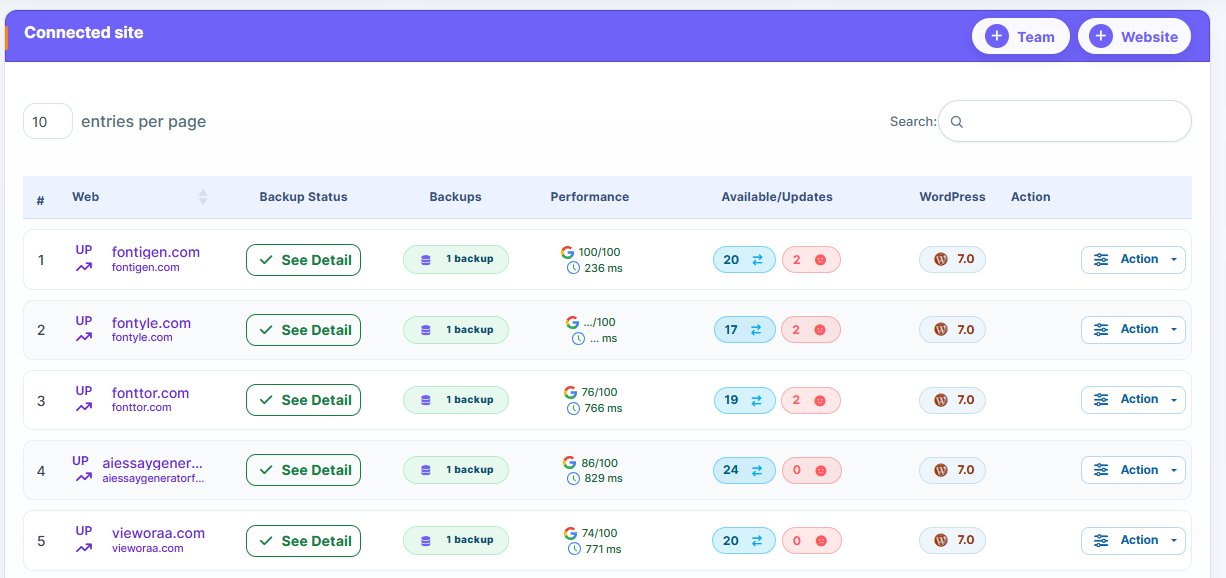
- Use a centralized system like WP Managify that supports backup, restore, monitor uptime, and health statuses of an unlimited number of sites.
- Use backup plugins like UpdraftPlus, BlogVault, and Duplicator.
- Use a hosting provider: Several WordPress hosting services offer automated backup as part of their services.
- Use manual backup – Time-consuming and requires technical knowledge.
What is a full WordPress backup?
A full WordPress backup involves creating a copy of your entire website – both files and database. The files include media uploads, plugins, themes, and WordPress core files. At the same time, the database includes pages, posts, user information, comments, and plugin settings.
How long does a WordPress website backup take?
Several factors determine the duration of a WordPress backup. These include the backup type (full, incremental, or differential) and file sizes. A full backup takes longer, though it’s the fastest to restore. Incremental backups are the quickest, though slowest and hardest to restore. A regular WordPress backup can take 10 minutes or more, depending on the factors mentioned.
What should you avoid when creating WordPress backups?
Avoid the following when creating backups:
- Storing large backups when you have limited storage space. If you’re backing up a file over 2 GB, your backup storage should be larger.
- Avoid storing backups on the same server. You could easily lose your data with this backup method.
What could happen if you don’t have a backup copy of your website?
You risk losing your website. Prolonged downtime can lead to financial losses, reputational damage, and, in severe cases, business closures. Backups make website restoration a breeze. Unless your hosting provider offers automated backup service, your crashed website is gone for good.
How vital are WordPress backups?
Backups are like your insurance policy, guaranteeing quick and easy website restoration in the event of a cyberattack, failed updates, natural disasters, data corruption, accidental data deletion, plugin or theme compatibility issues. Without backup, you can lose a website you have invested so much in, forever.
How often should I back up my WordPress website?
Backup frequency depends on the website’s activity. Here’s a quick breakdown:
- Backup daily if you make changes to your website daily or post daily.
- Have a WooCommerce store? Backup daily. You can set up an incremental backup for your store to capture customer orders and other site changes occasionally.
- If your website is less active, you can back up weekly.
- Run full backups after making significant changes to your website, like changing the website design or updating a plugin, including WordPress core version.
What is the best way to back up a WordPress website?
If your definition of “best backup method” implies an easy, quick method, using a platform like WP Managify, which offers a centralized system, is a wise option. Aside from easy backups, you can add an unlimited number of websites, monitor uptime, send custom reports to clients, and monitor site health.
Is it necessary to back up WordPress before every update?
Yes, it’s necessary. Always back up your website before you initiate an update. Do it even after testing updates on a staging site. You never know what could happen during the update. Update failures are possible and can cause problems for your website. An interruption due to a poor internet connection or corrupt files can cause an update failure. Backup enables restoring the website to a previous working state.
What is the importance of testing WordPress backups?
Testing backups before applying them to your live website lets you check their status. If the backup restored successfully when tested on a staging website, then it will work on your live website. Always test backups in a staging environment to avoid surprises. You can test your backups occasionally, even if you aren’t planning to use them immediately.
What is the difference between manual and automatic WordPress backup?
With manual backup, you have to download the files and export the database yourself. Automatic WordPress backup is the opposite. You can use a plugin (UpdraftPlus, BlogVault, or Duplicator) or a WordPress management platform like WP Managify, which offers a centralized dashboard.
Automatic backup offers consistent protection. You connect your website to the platform and choose a schedule. The platform handles the rest. It will back up your website without you having to initiate it.
Can I restore my WordPress website from a backup after it has been hacked and defaced?
Yes, you can restore your website from backup to a time when it was working perfectly. But that will depend on whether you have been consistently backing up your website. If you have been backing up consistently, you can restore your website to your last backup date, regardless of how hackers have defaced it.
Pro Tip: After restoring your hacked website, change the password and tighten security by installing more advanced security tools. You can run a malware scan after the backup restoration to ensure your website’s security hasn’t been compromised further.
How can I determine if a backup is valid?
You can figure out your backup’s validity by restoring it on a staging website. A staging site is your live website, but a cloned version of it. Anything you do on a staging site doesn’t affect your live website. Match the file sizes to the expected values, and review the plugin logs.
Other Common WordPress Backup Questions You Need To Know
What WordPress backup strategy is best for my WooCommerce store?
Incremental backups are the ideal backup method for your WooCommerce store. That’s because orders, inventory, and customer accounts change regularly on WooCommerce stores. Incremental backups suit the WooCommerce store’s need for real-time database backups. It backs up changes made on the website after the first full backup.
What are the popular mistakes website owners make when backing up their sites?
The most common mistakes include:
- Storing backups on the same server
- Not automating the backup process
- Failure to test backups on a staging website.
Manual backups are time-consuming and energy-draining. There is a high possibility of human error in this method. You could even forget to back up your website on some occasions.
Is it safe to use the WordPress backup plugin’s free version?
Many platforms offer free WordPress backup plugins, which are safe to use. Even centralized systems like WP Managify offer free and paid options. However, the free option comes with some limitations, which include limited storage space. You should upgrade to a higher version to back up larger files.
Should I back up my WordPress website before initiating the WordPress core update?
Yes, back up before you kick off your site’s WordPress core update. Backup regardless of whether you’re running a critical or minor update. Backup is essential when updating WordPress core, as your plugins and theme can conflict with the WordPress core. These sorts of updates usually break themes and plugins.
Can I restore my website fully from WordPress database backups?
No, you can’t. You need your database and file backups to fully restore your website. You can restore your website content with a database-only backup, not themes, plugins, uploads, or design. These are elements contained in the files.
How does cloud backup differ from local backup for a WordPress website?
With cloud backup, you store your files and database externally. This protects your backups from server or hardware failures. Local backup involves downloading and storing your files, including the database, on your computer. This leaves your backups susceptible to hardware failure.
Can backing up my WordPress website help recover my site’s SEO ranking after a significant issue?
Yes, a fast backup restore will help to protect your website’s search engine credibility. Quick backup restoration prevents lengthy downtime, errors, and broken pages that could jeopardize your website’s integrity and negatively impact SEO. Using a centralized system like WP Managify with one-click support makes backup restoration fast and efficient. You can even restore multiple websites from a single dashboard. That’s the concept.
Can I initiate backup when users are online and active on my WordPress website?
Yes, you can. However, avoid running a full backup during peak hours. Incremental backups are ideal for high-activity websites. It will run quietly in the background, ensuring users’ activities on the website aren’t affected.
Should I back up my WordPress website even if my hosting provider is already backing it up?
Yes, back up your WordPress website. Don’t rely on your hosting provider’s backups. Understand that your hosting provider’s backups might fail you when you need them the most. They also overwrite new backups and old backups, which can be an issue when restoring them. A personal backup gives you better control over your website’s backup. You can even test the backup on a staging website from time to time to ensure it’s still valid.
What’s the fastest way to recover a broken WordPress website using a backup?
Use a centralized system like WP Managify to back up and restore your website to its previous state. Using a centralized dashboard that supports one-click restore makes website restoration fast and straightforward. You can even add unlimited WordPress websites, making WordPress site management a breeze.
Conclusion
The WordPress backup FAQ reveals questions people ask. These frequently asked questions will give you a deep understanding of WordPress backup, helping you improve your website security.
WordPress backup is an important security measure. Proper backup makes website restoration a breeze after a cyberattack, data corruption, a failed update, or accidental data deletion. You can restore your website to a previous working state fast and safely, reducing downtime, financial losses, and reputational damage.