
How crucial is a cloud WordPress backup to website security? First and foremost, backing up a WordPress website is a wise and essential security measure. You’ll feel more confident running your website when you know nothing can hamper its smooth operation.
Even if hackers strike or other disasters occur, you can easily recover and restore the website to its previous state. Offsite WordPress backups offer even more guarantees. With platforms like WP Managify, even if your website crashes, you can recover it effortlessly.
This guide shows how to set up WordPress backups to Google Drive or Dropbox. You will learn how to choose the proper schedule and automate backup. Keep reading for more details.
Importance of Cloud WordPress Backup
Are you still storing your backups on your hosting server? You’re taking a considerable risk by doing so.
The fact that your website is still running smoothly doesn’t mean you should be careless about your website security. You’re taking a massive risk by storing your backups on your hosting server.
What makes this a huge risk for your website?
The reason is simple. Millions of WordPress websites get attacked every single day. Over 13,000 websites get hacked daily.
Aside from cyberattacks and hardware failures, malware can also pose a problem for your website.
A remote WordPress backup is a wise move. Backing up your website to Google Drive or Dropbox gives you a clear distance (protection) from your server.
Offsite WordPress backups enable disaster recovery. You create and store copies of your website off-site. If your website unexpectedly crashes, the plugins, themes, databases, and website configurations captured during backup will remain intact.
You can easily restore your website from your last backup. That’s how beneficial off-site WordPress backup is. It protects your content and gives you peace of mind.
Here is a summary of the benefits you get when you store WordPress backups in the cloud:
- You’ll create and store secure copies of your site.
- You can automate your WordPress backups.
- You can easily recover your website, even in the event of server-level failures.
- WordPress backups to Google Drive, Dropbox, and other cloud services offer excellent flexibility.
- Offsite backups support database and file backups
- Offers better protection, peace of mind, and compliance.
Pro Tip: Agencies prefer remote WordPress backups, particularly those managing multiple WordPress websites. With platforms like WP Managify, agencies and freelancers can effectively back up and manage an unlimited number of WordPress websites.
Remote WordPress Backup Explained
We have consistently used the terms “remote” and “offsite” throughout this content. Now, what does it mean to back up a WordPress website remotely? Or, what does off-site WordPress backup imply?
It means backing up your website and storing the backups elsewhere (not on the same server). This strategy is crucial when there is:
- Geographic outages
- Server crash issues
- Malware attacks wiping local backups
- Hosting account lock-outs. You’ll no longer have access to your hosting account.
Cloud WordPress backup just adds an extra layer of resilience to your website’s backups and security. You’ll feel more secure and comfortable running your website.
WordPress Backup to Dropbox vs. WordPress Backup to Dropbox: Key Concepts
Let’s discuss how to store WordPress backups in Google Drive. Then we will move to Dropbox.
Google Drive:
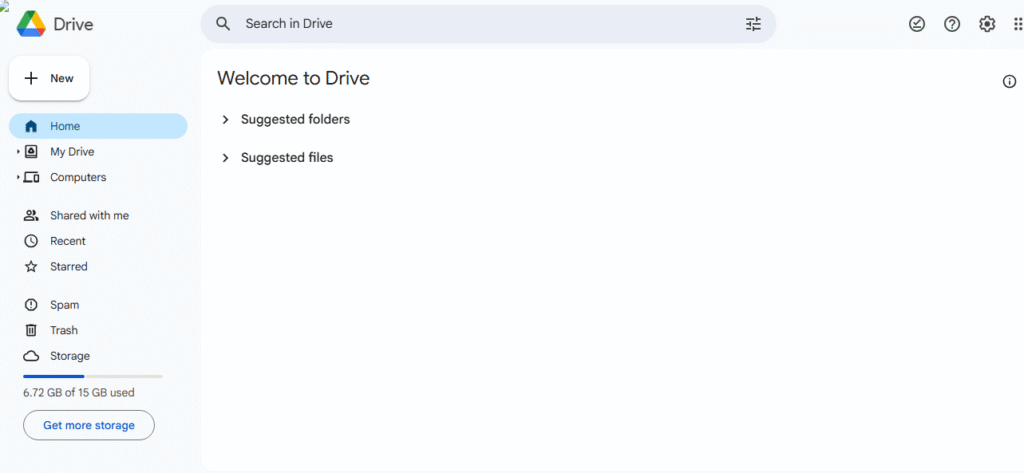
You can move your WordPress backup to Google Drive. The platform, owned by Google, offers free and paid storage options.
The free Google Drive option only gives you 15 GB of storage. This free storage space is shared between Google Drive, Gmail, and Google Photos.
You can upgrade to the Google One Plan for more storage space. The storage space for the paid plan usually starts from 100 GB. And you can share it with your families.
Does Google Drive back up WordPress directly? No, it doesn’t. You have to connect a plugin to Google Drive to store WordPress backups there.
You can connect plugins like Duplicators or UpdraftPlus. But this can be confusing for many.
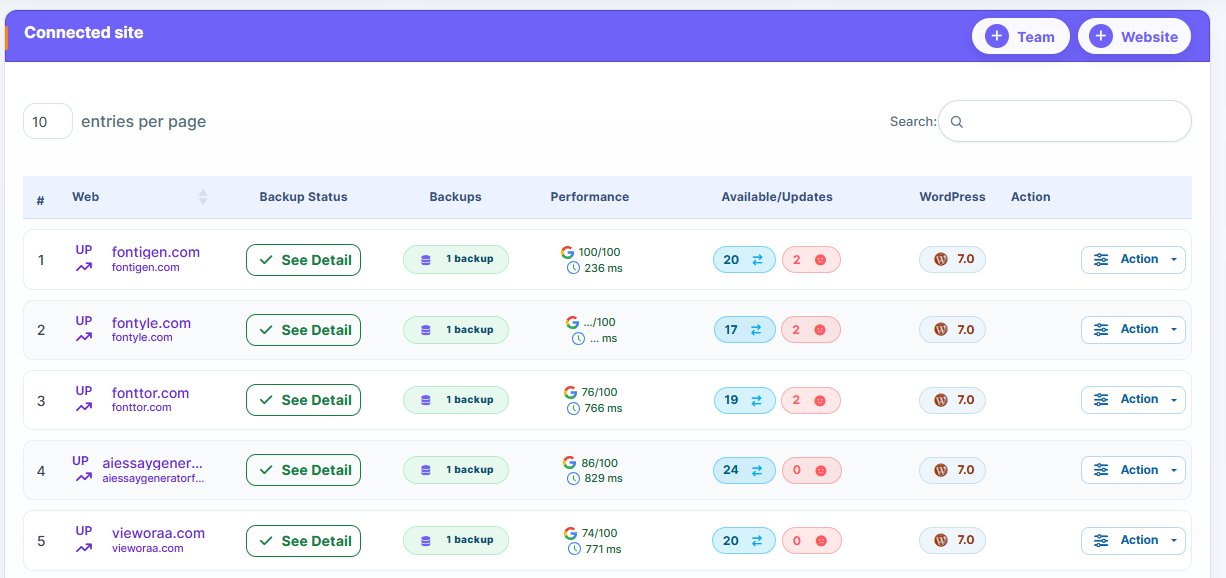
WP Managify makes storing WordPress backups in the cloud a breeze. You don’t need technical knowledge to use the platform. Just create an account, connect your website.
You can back up, update, and monitor an unlimited number of websites from a single centralized dashboard.
For website owners who enjoy doing things the hard way, here is how to back up WordPress to Google Drive. Again, you can either use UpdraftPlus or Duplicator for this.
- Download and activate the plugin.
- Select Google Drive as your preferred storage destination
- Set backup schedules (daily, weekly, or monthly)
Dropbox backups:
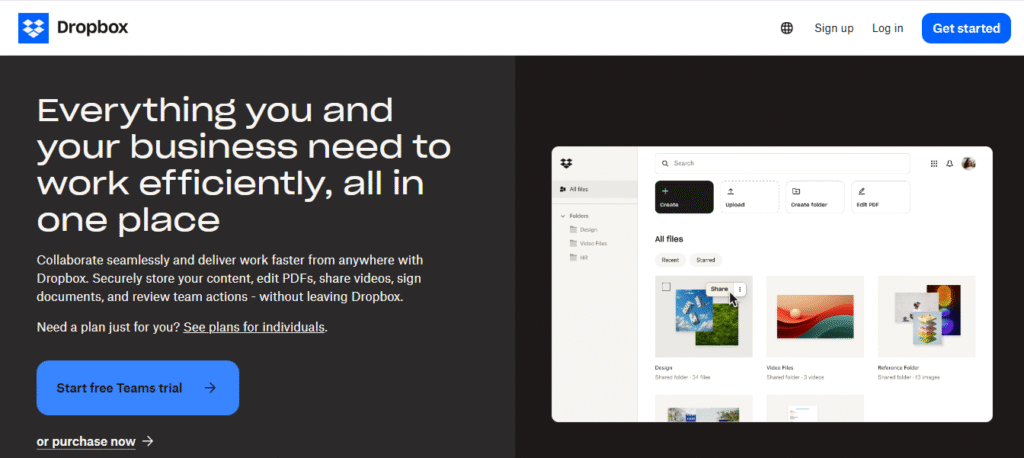
While Dropbox remains a popular platform for remote WordPress backups, most people might consider the high cost a deal-breaker. Businesses that require larger backups and more storage spaces pay higher.
How To Backup WordPress to Dropbox or Google Drive: A Guide
Follow these steps to know how to back up your WordPress website to a remote storage location – Google Drive or Dropbox.
Step 1: Install the plugin:
Visit the “Plugins” section of your WordPress website. Click on “Add New” to add a new plugin to your website. You can add the Duplicator or UpdraftPlus plugin.
Pro Tip: With WP Managify, all you need to do is create an account on the website.
You’ll have a centralized dashboard where you can connect your WordPress website to WP Managify. Thereafter, you can back up your website, update plugins, monitor uptime, health, and more.
Step 2: Activate Plugin:
After installing the plugin, activate it.
Step 3: Cloud storage authorization:
In the plugin’s settings, select “remote storage. You can either choose Dropbox or Google Drive.
If you’re using the Google Drive, click “Sign in with Google.” Another option you’ll find is “Authorize Google Drive.”
Now, follow the prompts and grant the required permissions.
If you are using Dropbox, the process includes the following:
Click “Connect to Dropbox.” Afterward, you can sign in and allow plugin access.
Remember to save settings once authorized.
Step 4: Backup schedule and retention configuration:
Your website activity will determine your backup schedule. For example, if you’re backing up a small website, choose the weekly backup schedule.
Choose your backup retention. How many backups do you want to keep?
Here are backup retention tips:
- Daily backups – Keep backup for 30 days
- Weekly backups – Keep backup for 12 weeks
- Monthly backups – Keep backup for 12 months
Step 5: Choose what to back up:
Endeavor to include:
- WordPress database
- wp-content/plugins
- WordPress core files
- wp-content/themes
- WordPress core files
- wp-content/upload (media)
- Configuration files (.htaccess, wp-config.php)
Step 6: Choose cloud location and test storage:
If you’re using Google Drive, choose the folder path. You can also use the default folder that the plugin created.
If you’re using Dropbox, confirm that the folder has been created and is accessible.
You need to test the backup manually. Verify if the file appears in the cloud storage.
You should also check the size, content, and timestamp.
Step 7: Automate and monitor backups:
Follow these few steps:
- Allow the backup schedule to run
- Monitor storage usage
- Set email alerts to monitor backup success or failure
- The backup plugin logs should show success
- Whenever you spot failures, address hosting restrictions or plugin conflicts.
Step 8: Download local copy:
Consider downloading a local copy of your backup and storing it offline. Even if you store your WordPress backups in Google Drive or Dropbox, still download a local copy of your backup.
By storing your backups offline, you’re adding an extra layer of security. It’s an important step to take, even if you’re using the best free WordPress plugin.
Pro Tip: With WP Managify, you don’t need to download a local copy of your backup for extra security. All you need is a reliable platform that makes WordPress backups straightforward and secure.
What To Consider When Choosing Backup Tools For Offsite WordPress Backup
There are several factors to consider when choosing remote WordPress backup tools. Choosing the right tools will make the process safe and straightforward. Here are several factors to consider.
Easy restore:
Choose a cloud WordPress backup tool that makes restoration a breeze. This makes it easier to manage multiple websites. You can restore each one of them with one click.
In a nutshell, choose a WordPress management platform that supports one-click restore. WP Managify does. This feature makes backup restore effortless.
Supports database and file backup:
Choose a backup platform that supports database and file backup. That way, you can back up the database and the file separately, or together.
There might be times when a database-only backup is what you need. Other times, you might want a file-only backup. Choosing the component to back up helps you utilize your available storage space effectively.
Backup scheduling:
Scheduling is another factor to consider when choosing an off-site WordPress backup tool. You need a tool that supports scheduling; a tool that can meet your website’s backup and management needs.
For instance, high-activity websites require daily backup. This helps keep website data safe. So choose a backup platform that lets you schedule backups. The platform should support daily, weekly, monthly, and custom backups.
Incremental backup:
When choosing off-site backup tools, consider one that supports incremental backups, among other features. Incremental backups help reduce server loads. It is a wise choice for high-activity websites, as it stores only minor changes rather than the entire website data.
Incremental backups occupy less storage space. This makes them a wise choice for larger websites. So, choose a backup tool that supports incremental backups. It’s an excellent choice for high-activity websites like WooCommerce online stores.
Monitor and error notification:
You might get so busy with other activities that you forget to track your website performance. Out of the blue, an error could pop up.
An error message indicates that there are underlying issues with your websites that need to be fixed. The sooner you act to rectify the issue, the better.
That’s why it’s essential to choose a WordPress management platform that monitors your website. Choose a platform that notifies you whenever an error occurs.
WP Managify monitors website health and uptime. You’ll get a notification on your dashboard whenever there is an error on your website that needs fixing. Uptime monitor ensures your website runs around the clock. It helps you prevent downtime.
Finding a tool that has all the features mentioned can seem impossible, but it isn’t. WP Managify supports backup scheduling, one-click restore, website and uptime monitoring, and other features mentioned.
Must-know Remote WordPress Backup Guideline
If you’re using off-site backup, these guidelines are essential.
- Choose a backup schedule based on the website’s size and activity. For large websites, consider incremental backup schedules.
- Use a secure password: Your password is essential. Use an easy-to-remember and secure password. Avoid passwords that hackers can easily crack. Choose a password that combines numbers, letters, and special characters.
- Test restore from cloud backups regularly: Testing your backups helps avoid surprises when you need to restore them. It will help ensure your backups are always ready and that restores will be successful.
Common Mistakes To Avoid When Backing Up WordPress
Proper backup is possible when you avoid the following mistakes. They are simple mistakes, yet they can cost you dearly when ignored.
Database and file backups:
Ensure you always save your files and database. Don’t save one at the expense of the other.
Relying on the cloud WordPress backup free plan:
Choosing backup tools offering free plans isn’t a terrible idea. But note that the free plan is to introduce you to the tool.
Your website backup storage needs will increase day by day. It will increase quickly for high-activity websites.
The bottom line is not to rely entirely on free backup tools or free plans. Upgrade to have more storage space. That way, you can back up everything on your website.
Not automating WordPress backups:
Backup automation makes website management a breeze. It makes backups effortless and effective. You won’t have to worry about your backups; the platform does everything for you.
On platforms like WP Managify, you just set up the backup automation and let the tool handle the rest. It handles your website backups at the scheduled time. You don’t even need to lift a finger.
Not setting up backup automation is a vast mistake website owners must avoid. You could mistakenly miss backing up important data before an update. And that could cost you dearly.
Storing backups on the same server:
You’re taking a massive risk by storing your backups on the same server. A server crash could spell the end of your website.
You have worked so hard to build your website to the level it is now. A remote backup platform is all you need to keep your website safe and active.
Even when there is a sudden crash or you can’t access wp-admin, you can still restore your website to its previous state.
You can restore your website from the WP Managify dashboard, provided you have connected the platform to your website before the crash.
FAQs on Remote WordPress Website Backup
What is cloud WordPress backup?
Cloud backups involve storing your backups (files and databases) in a remote location (Google Drive or Dropbox). These are the two cloud storage services we discussed. They enable storing backups off-site.
Storing backups on the same server is risky. You could lose your files and databases if the server crashes or you can’t gain access.
Does WP Managify store backup offsite?
Yes, the platform stores backups in a safe remote location. WP Managify offers a range of features that make backing up and managing a WordPress website a breeze.
Does WP Managify have a free WordPress backup plan?
The platform has a free plan. You will have access to several advanced features on the free plan. But if you want higher storage space, you need to upgrade.
The free plan lets first-time users try the platform firsthand. You can upgrade to other plans as your storage and website management needs increase.
Is WP Managify a reliable WordPress management tool?
You can only know if a tool is reliable after spending time on it. However, having used the tool for several years, we can confirm that it’s one of the most reliable tools for website backup.
Apart from being reliable, the tool is a breeze to use. WP Managify has an intuitive interface that makes WordPress backup and management simpler. Even a website owner without technical knowledge can back up and maintain their website, saving them thousands of dollars in hiring technical experts.
Can I recover my website if I can’t access the wp-admin?
Yes, you can. You can recover any website from your WP dashboard. However, ensure your website is connected to WP Managify. Otherwise, you can’t.
WP Managify supports one-click restore, making website restoration a breeze. You can restore your website effortlessly from any restore point.
How can I access WP Managify?
You can access the platform via the official website. Create an account if you haven’t done so. It takes a few minutes to open a fresh account.
Remember to use an active email and password you can easily remember. You can also recover your password if you’ve forgotten it.
Log in to the dashboard and connect your website to the platform. You can add an unlimited number of websites to WP Managify. This makes it a tool of choice for agencies and freelancers managing multiple WordPress websites for their clients.
Conclusion
Having a solid cloud WordPress backup workflow is no longer an option for websites. It’s now a necessity.
Having a tool that makes WordPress management a breeze is a no-brainer. With platforms like WP Managify, you can even manage multiple websites from a single dashboard.
Choose a platform that lets you automate backup. Use features like one-click restore to restore backups with ease. Safeguard your website by using a tool that backs up and monitors. Get notified when errors pop up.

&media=https://wpmanagify.com/wp-content/uploads/2025/12/Cloud-Wordpress-Backup.png)