It’s possible to restore WordPress site after a bad update or crash. You can even restore your website even if the wp-admin is inaccessible.
Having a broken website can quickly turn a happy workday into a sad and stressful one. Several things can break a website.
Your hosting provider may push a PHP update that causes compatibility issues. A simple theme change can wipe out your layout. Even a simple plugin update can cause a fatal error.
You can restore WordPress to previous version whenever disaster strikes. WordPress management platforms like WP Managify support one-click restore, making disaster recovery a breeze for agencies, freelancers, and website owners.
In this post, we explained how to restore your WordPress website even after a messy crash or bad update. Keep reading to learn more!
Why Do WordPress Websites Break After Updates?
Website updates are essential. A WordPress core update can patch loopholes, preventing hackers from accessing your site.
While WordPress updates can improve website security and performance, they can be highly risky. Without proper backups, you risk destroying your website. Recovery could even become impossible.
Popular WordPress installations include themes, plugins, PHP, and core systems. Unfortunately, when one of these components updates before the others, compatibility issues could arise.
What could cause a WordPress website to crash after an update? They include:
- Using outdated themes
- Damage to the database table
- Plugin conflicts after an update
- Hosting environment changes
- A failed WordPress core update
- Malware attack or corrupted file injections
- Broken PHP compatibility can cause a website crash
You can restore WordPress site even after an update that led to a crash. With the right WordPress management tool and consistent backup, you’ll never lose your site data.
Several WordPress websites crash after updates. That is the reason you must have an efficient backup and restore tool. This isn’t an option, but a necessity.
Imaging using WordPress management tools like WP Managify. You won’t have issues recovering your WordPress website after the update.
You can automate your backups. With this, you can backup your website effortlessly before every update.
Methods to Restore a WordPress site After A Failed Update or Crash
You can restore your WordPress website after a crash, data corruption, a failed update, or a cyberattack using different strategies.
Here is a quick look at the different website restoration methods:
- A centralized system – WP Managify, MainWP, SolidWP.
- A backup plugin – examples include UpdraftPlus, Duplicator, BlogVault, and BackupBuddy.
- Web hosts with built-in backup and restore options – examples include SiteGround, BlueHost, and WP Engine.
- Restore from manual backup.
- Website restoration via WordPress CLI
We have highlighted the different ways you can restore WordPress sites from backups after a critical or minor update failure, a crash, or a cyberattack renders your website inaccessible.
Let’s dive in!
Method 1: Restore WordPress from a backup from a centralized dashboard (WP Managify Recommended):
Using a platform that offers a centralized dashboard like WP Managify makes website restoration a breeze. The platform supports one-click restore, and you can add an unlimited number of websites to backup and restore simultaneously.
Here is how to restore sites from backup on the WP Managify dashboard.
- Backup WordPress with WP Managify: Ensure you have an account on WP Managify and back up your website. You cannot restore your website after a crash or failed update if you fail to back up.
- Choose the website’s backup to restore: Click the website you want to restore to proceed. This section is primarily for individuals with multiple websites on the WP Managify platform.
- Click on “Restore Backup”: Backup restoration is super quick and easy when done via centralized dashboards. You can even restore multiple websites simultaneously. So, just click “restore” to return your once-broken website to its previous working state.
Method 2: Restore WordPress from backup via backup plugin:
You can back up and restore a WordPress website via a backup plugin. You download and install the plugin straight to your WordPress website.
Examples of plugins used for backup and restoration include:
- UpdraftPlus
- BlogVault
- Duplicator
- BackupBuddy
Here’s how you can use backup plugins to restore WordPress.
- Plugin installation and activation: Do you already have a backup plugin on your WordPress site? If yes, you can log in to your WordPress dashboard and proceed to the next step. But if you don’t, then search for and install any of the named backup plugins on your site. After installation, activate the plugin.
- Find the backup: The next step is to locate the specific backup you want to restore. In most plugins, you’ll find a section listing all the backups. Find the backup you want to restore.
- Kick-start backup restoration: Find the “restore” button and click on it. You can decide the component you want to restore to. For instance, you can restore the website’s files, database, plugins, and themes.
- Check the restored website: Once the backup restoration is complete, verify that everything is working perfectly.
Method 3: Web Host with built-in backup and restore option:
Another way to restore a WordPress site from backup is through your web host. However, not all web hosting service providers support this function.
Examples of hosting providers that have built-in tools for website backup and restoration include:
- Bluehost
- SiteGround
- WP Engine
How can you restore a WordPress website after a bad update or a crash from a hosting provider?
If you use a web hosting service that has a built-in system for website backup and restoration, follow the steps below:
- Log in to your web hosting account: The aim is to enter the web host’s dashboard. It could be a custom interface or a cPanel.
- Find the “backup” or “restore” option: Search for the backup or restore option after accessing the dashboard or cPanel.
- Choose backup date: Select the backup date you want your website to be restored to.
- Restore WordPress website: This process is simple. Just click on the “restore button,” and your website will be automatically restored. You can restore the database, the files, or both. It all depends on the hosting provider you’re using.
Method 4: Manual backup restoration:
This method works if you have been backing up your website manually. The manual backup involves downloading your website’s files and databases directly to your computer.
While manual backup and restoration give you complete control, they can be tedious and time-consuming. Additionally, you need some technical knowledge to back up and restore your website manually.
The manual backup-and-restore process is also error-prone.
But if you want to back up and restore your website manually, follow the steps below. Note that you can restore the files and database of your website:
WordPress files restoration:
- Upload the downloaded backup file to the website’s directory. You can use an FTP client (e.g., FileZilla) for this.
- Have the existing file replaced with the new option.
WordPress database restoration:
- Access phpMyAdmin: Requires logging in to your hosting dashboard.
- Import database: Choose your WordPress website’s database. After that, click on “import.”
- Upload the backup.sql file and click “Go” to finish the restoration process.
Method 5: Backup restoration via WordPress Command Line Interface (CLI):
Do you possess advanced knowledge of WordPress? If so, you can use this method to restore your WordPress website after a crash or a sudden update failure. Follow the steps below:
- Upload the backup file to the server using FTP or SSH.
You can see that this process began with uploading your backup. Always remember to back up your website.
Why Use WP Managify To Backup And Restore WordPress Site with WPManagify?
Several methods and tools exist for backing up (and restoring) WordPress sites. But, as someone with over a decade of experience managing WordPress websites, WP Managify has been a reliable option.
The tool solves many problems that most existing WordPress management tools and backup techniques fail to address. It provides a single dashboard that makes website backup and management a breeze.
Many people are still relying on hosting backup even when they know the risks and limitations. They try to brush off the limitations that come with it.
If you value your website, you shouldn’t be taking such a risk. You could lose your website if your host crashes, which is very possible.
The limitations of hosting backups:
- Restore processes are usually slow and frustrating
- The cPanel can be challenging to navigate
- Partial backups or missing files are a common problem
- You won’t get a rollback preview
- Lacks automated pre-update snapshots
Having stated the different problems hosting backup poses, how does WP Managify differ? How does it make backing up and restoring a WordPress site effortless?
- Supports file-based online backups
- Supports database-only backups
- The platform supports one-click restores
- Offers a safe update and installation mode
- Supports remote restore (Restore even if wp-admin is down)
- Monitor uptime and website health
People whose websites have suffered fatal errors or blank screens understand how priceless it is to have remote access to backups. That’s why tools like WP Managify stand out. They make it easier to restore WordPress site even if you can’t access the admin dashboard.
Types of WordPress Site Backups WP Managify Offers
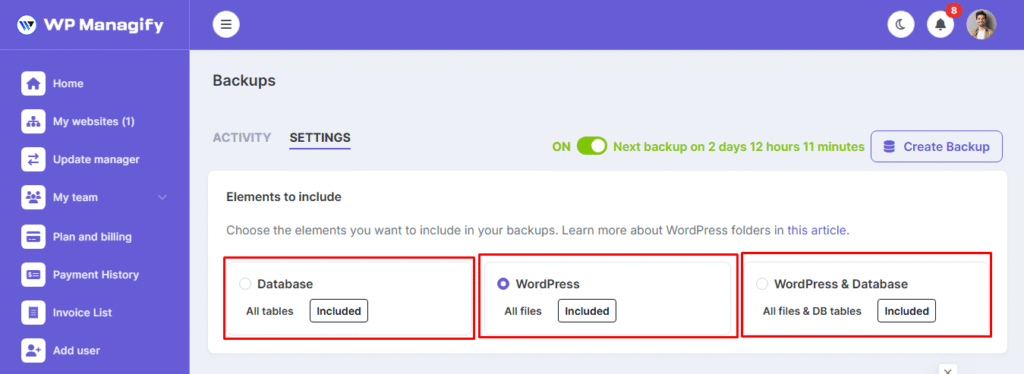
Before you start to consider how to recover a WordPress website, understand the type of backup the platform provides with the tool you’re using.
In this case, we’re using WP Managify, a WordPress website management tool. Here are the backup types it supports:
Full backups:
With a full backup, you’re creating copies of all the website files, including database tables.
When should one use a full backup? It depends on the scenario.
You should utilize a full backup when:
- You can’t reach your dashboard
- The whole website had crashed
- You’re dealing with a corrupt database and files
File backups:
With file backup, you create copies of essential parts of your website. This includes the WordPress core files, plugins, themes, and uploads.
Now, the question is, when should you utilize a file backup?
You should use it when:
- You encounter corrupt files after updating a plugin
- You have a broken CSS or layout, probably after an update
- You encounter critical visual issues. Even a minor visual issue requires attention.
Database backups:
With the database backups, you can restore your website’s content, posts, users, plugin configurations, and settings.
When are database backups valuable? They are when:
- Content disappears
- After loading the website, the wp-admin displays errors
- You are dealing with a corrupt and unusable database table
WP Managify includes features that let you back up and restore WordPress websites effortlessly. You can decide which components to back up and restore.
How to Restore WordPress from Backup (A Guide on Using WP Managify)
Let’s assume you have already used WP Managify to backup your WordPress site. You have created an account and a dashboard that lets you manage your WordPress website (and add an unlimited number of sites).
Follow the next steps after you create an account and back up your WordPress website.
Step 1: Log in to WP Managify:
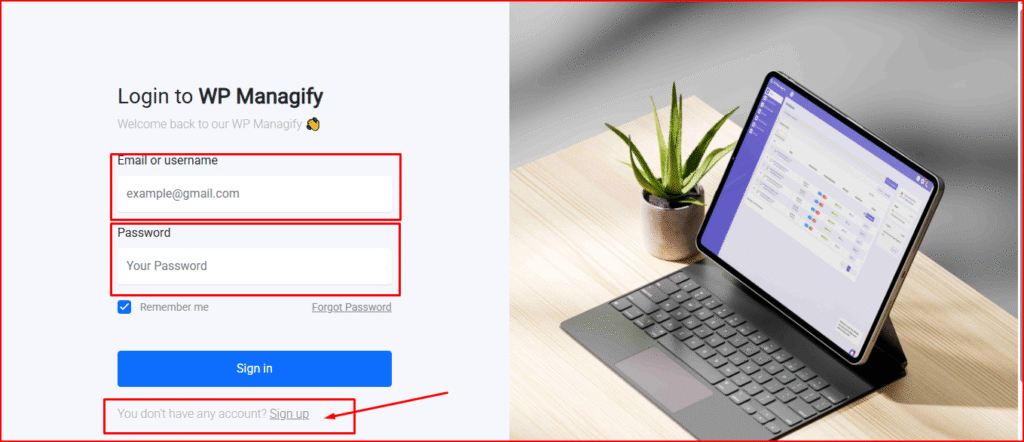
Remember, we’re using WP Managify to back up and restore WordPress site. And you can connect an unlimited number of websites to the platform.
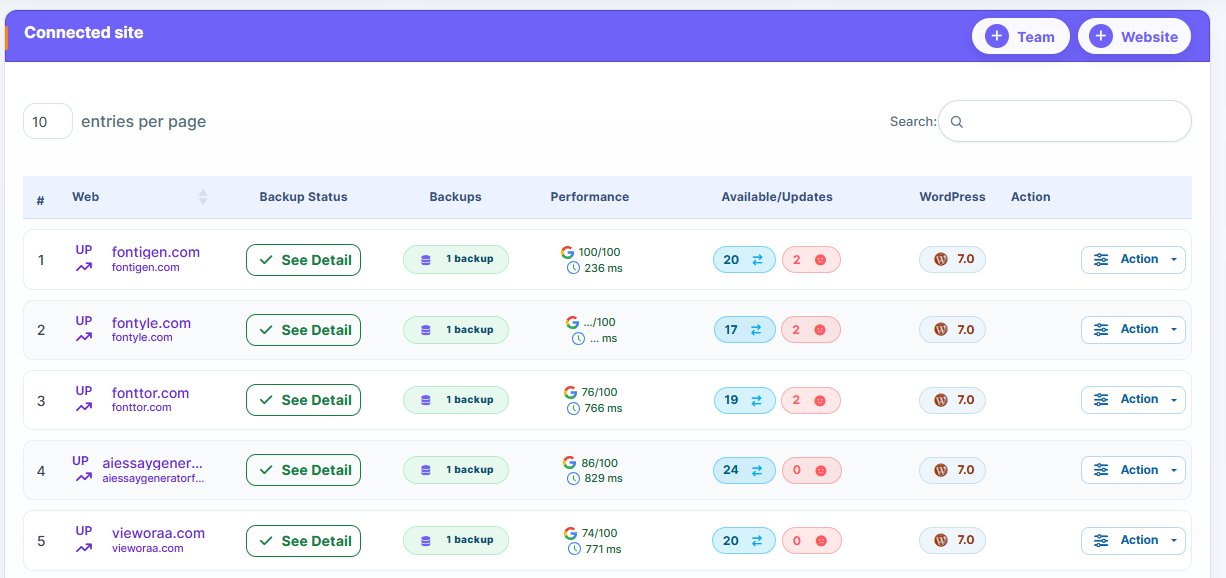
Once you log in, you’ll find all the websites you added to the platform on your dashboard.
On the dashboard, you can install and update plugins, and manage your connected WordPress websites. You can backup all the connected websites, too.
On the centralized dashboard, you’ll find broken websites and those with errors. You don’t have to visit the websites one after another. The dashboard will display everything about the connected websites.
Step 2: Access the backup and restore section:
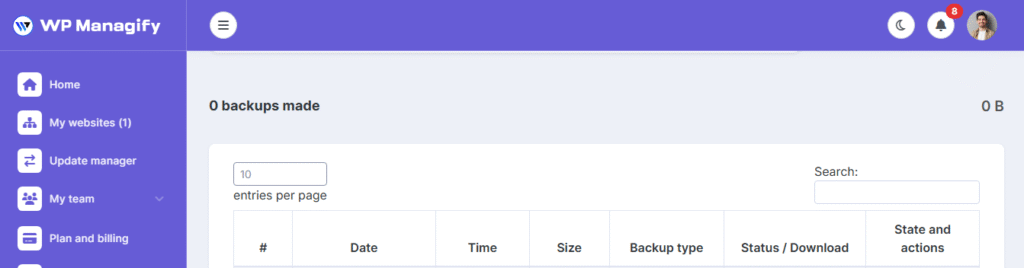
After connecting your websites to the centralized dashboard, you can start the backup process. Backup before you run any update.
You’ll discover backups saved in the past on your centralized dashboard. Other information includes:
- Backup dates
- Backup time
- Backup sizes
- Backup type (full, file, and database)
- Backup status/download
- Backup restore button
- Backup state and action ( You can delete backups anytime)
Having a tool with such an organized interface makes it easier to restore WordPress sites. It offers diverse restore points.
Step 3: Choose the backup type to restore:
Before deciding on which backup version to restore, consider the cause of the issue or crash. Here are some possible scenarios and backup options.
- Crash caused by plugin update: Choose the backup you created before conducting the plugin update.
- Layout failure caused by theme change: If the layout failure you’re experiencing is because you changed your theme, select full or file backup.
- Unable to access wp-admin: If you’re unable to access the wp-admin, perform the latest full backup.
- Failed WordPress core update: In this scenario, restore WordPress to the previous version. In other words, choose a backup from the previous version.
The benefit of using this style of WordPress website restoration is that you’ll only restore what is necessary. And you won’t lose your recent content in the process.
Step 4: Restore backup:
Your task is to choose the restoration action. WP Managify will handle the rest. It will handle:
- Extraction of the file
- Rebuilding of the database
- Configuration validation
- Conduct data integrity checks
Pro Tip: WP Managify is a WordPress management platform that makes backup and restore effortless. It automates the whole process from start to finish.
What’s more, you don’t need to visit open phpMyAdmin or cPanel. You don’t even have to download the files manually.
Step 5: Confirm and test the WordPress site:
Once the restoration process is completed, WP Managify will display a success message.
The message confirms that your backup has been completed. It doesn’t confirm whether your website is functioning correctly.
You can check the following after the restoration:
- Homepage
- wp-admin
- Theme appearance
- Plugin functionality
- Pages and posts
You can consider the backup a success if everything you checked loaded correctly.
How To Restore WordPress from Backup When You Can’t Access wp-admin
What steps can you take to restore backup when your dashboard displays diverse error messages? First, let’s look at the error messages and the causes.
- There has been a critical error: This depicts a fatal PHP error. The causes include insufficient PHP memory, incomplete updates, theme or plugin conflicts, outdated PHP, corrupted core files, or server issues.
- White screen of death (WSOD): The causes include a syntax error in custom mode, insufficient PHP memory, plugin or theme conflicts, or corrupted theme or core files.
- Error establishing database connection: Causes include incorrect database credentials, database server issues, corrupted application files, corrupted database, PHP version mismatches, malware and hacking attempts, and incorrect database host information.
- Syntax error: Causes of syntax error include file corruption, incorrectly edited code, and incorrect use of language syntax.
Even if you can’t access wp-admin, you can still use WP Managifyor other centralized systems However, WP Managify is high recommended. The reason is simple: the restore system is from the Managify’s dashboard. You don’t need to access the WordPress admin panel. The platform lets you recover WordPress site remotely.
Using this strategy will save you thousands of dollars, as you don’t need to hire a developer.
How to Restore WordPress to Previous Version (Using WP Managify)
Here is how you can remove a bad update from your WordPress website. Follow the steps below.
- Open WP Managify
- Open backup
- Choose a restore point before the update
- Click “Restore.”
WP Managify makes restoring WordPress to previous state straightforward and fast. Your website will return to its previous working version.
This feature is helpful for:
- Theme rollback
- Plugin version rollback
- PHP compatibility rollback
- WordPress core rollback
You could break your website by performing this action manually with FTP or SQL imports.
How to Recover WordPress Site After Update Failure
Updates are important. A plugin update can improve website security and performance. However, most website failures experienced happen immediately after an update.
How do website failures happen after a plugin update? It could happen when there is an interruption during plugin update.
Another cause is compatibility issues. The plugin might not be compatible with the current version of WordPress.
How can you address this problem? Follow the steps below.
- Log in to WP Managify: Already have an account? Log in and continue to the following process.
-
- Locate backup copy created before update: You can search for a backup. Usually, the WP Managify displays the most recent backups at the top of the dashboard. You don’t need to search unless you created the backup a long time ago.
- Restore the website: Click restore to proceed with the process
- Test update: Test the update after conducting it.
Pro Tip: If a plugin was responsible for the crash your website suffered, then don’t allow it to remain after the backup restoration. Deactivate the plugin immediately.
Tips on How To Recover WordPress Site After A Bad Breakage
Have you had a broken website? It can be frustrating to rectify. In a worst-case scenario, your website could experience more than a breakdown; it could be deeply corrupted.
You can navigate these scenarios with ease if you are using reliable WordPress management platforms like WP Managify. You can recover your WordPress website from the centralized dashboard.
Use full backup restore if you notice the following on your website:
- Hacked files
- Missing content
- Broken theme files
- Database corruption
- Media library not loading
- Plugin configuration loss
- Repeated critical errors
When you initiate a full restore, you’ll replace everything missing in your website. Each missing component gets replaced with a stable version.
How WP Managify Can Help You Prevent Future Website Crashes
Prevention is better than a cure. That’s what those in the medical world say. While backup restoration is crucial for WordPress websites, preventing crashes is a much better approach.
With WordPress management platforms like WP Managify, you’ll have access to all the tools you need to keep your website running smoothly and effortlessly.
Here is how the platform can help you prevent future crashes.
Central dashboard for all your websites:
Imagine managing multiple websites where you have to log in to each one in turn. Productivity will reduce, and you’ll need more hands for the job. This isn’t sustainable for your WordPress management agency.
With WP Managify, you’ll have a central dashboard. You can connect an unlimited number of websites to the dashboard.
From a single dashboard, you can update, backup, and manage all your WordPress websites. All you need to do is log in to your WP Managify dashboard to manage your websites.
The platform eliminates human errors associated with manually managing multiple WordPress websites. It makes the task a breeze for agencies, freelancers, and business owners.
Automates WordPress backups:
By setting up automatic backup, you can easily restore your website to its previous state following a bad update. Themes, plugins, and WordPress core updates won’t cripple your website.
Safe update mode:
WP Managify will run checks for updates before applying them to your live website. This eliminates compatibility problems.
Bulk update management:
Agencies managing multiple websites understand the challenges that come with such tasks. Updating each website manually can be a daunting task. There’s a high possibility of human errors when updates are done manually.
WP Managify makes managing an unlimited number of WordPress websites a breeze. It lets you perform controlled updates for many websites at once.
Website health and safety:
WP Managify helps keep websites up and running. It eliminates security threats that can cripple websites.
When injected scripts or malware corrupt your files, restore the backup. That way, you eliminate the threat and restore your website to working order.
Conclusion
It takes time and energy to restore WordPress site manually. Apart from the fact that you could spend several hours, human errors can occur. These errors can be costly. Your website could even crash.
Using the proper backup-and-restore WordPress tool is a no-brainer. It doesn’t matter the number of websites you’re managing. However, agencies managing multiple websites need a platform that provides a centralized dashboard, such as WP Managify.
You can manage an unlimited number of websites from a single dashboard. That is what platforms like WP Managify make possible. You can update, back up, monitor, and maintain your WordPress website from a single dashboard.
FAQ: Recover WordPress from Backup
How long does a complete WordPress website restoration take when using WP Managify?
It will depend on several factors. However, the process usually finishes in a few minutes. But note that websites with larger media files may take longer to load.
WP Managify makes backup and restore fast and easy. It automates WordPress backups and makes restores smooth..
Can I restore a WordPress site even if I no longer have access to my WordPress dashboard?
Yes, you can. Management platforms like WP Managify can make it possible. You can remotely restore your website from your WP Managify dashboard. It is possible even if you can’t access your wp-admin.
Will a backup restore wipe out new posts or changes made after the backup date?
Yes, it will. It will replace anything you created after the chosen restore point. That is why it is always advisable to select the most recent good backup. The idea is to reduce data loss to the lowest.
Can I restore only the database on my website without restoring the files?
Yes, you can. Database-only restores are possible. Database restoration is essential when you have issues with your content or settings, but your themes and plugins are functioning correctly.
What step should I take after completing WordPress restoration?
The first thing to do after completing WordPress restore is to check your homepage, critical pages, themes, plugins, and login area.
Once you confirm that they are working perfectly, you can proceed to create a brand new backup.
Can I undo a restore after clicking the wrong backup?
Yes, you can undo a restore if you mistakenly click the wrong backup. Just run another restore using a different backup point. This process is possible with WP Managify. You can perform an unlimited number of restores. Just ensure your backup history exists.
Does WP Managify support multisite recovery?
Yes, the platform does. You can restore each website you have on your network independently. And you can do this from a single dashboard.
Agencies and freelancers managing multiple websites can benefit from this platform. It makes WordPress management effortless.