
How reliable is your WooCommerce backup strategy? Your online store needs proper backup. You need to secure your customers’ orders, order history, product information, user profiles, pricing, and other important WooCommerce site information.
Regardless of the brand, any online business will struggle after a cyberattack or data loss (or a website crash). A crashed website can damage a business’s reputation and dampen customer interest. Potential customers may get frustrated and start buying from competitors with a more stable online store.
When you back up your online store on reliable management platforms like WP Managify, the process becomes easier, and you’ll have peace of mind. Features like one-click restore, health monitoring, and uptime monitoring make WordPress management more effective.
Here, we discussed how to back up and restore a WooCommerce store. You’ll learn the process and tips for backing up your WooCommerce store effortlessly.
What Makes WooCommerce Backup Important?
The dynamic nature of WooCommerce-powered stores makes backup a necessity. Orders can pour in nonstop; new customers create accounts daily; products change; customer reviews, stock levels, and pricing updates occur frequently. Online stores record high activity.
Because WooCommerce stores boast several moving parts, they require special backups. Your typical WordPress website backup won’t be enough.
When you backup WooCommerce stores, you protect:
- Customers order history
- Inventory and stock levels
- Payment information
- Shipping rules and tax configurations
- WooCommerce store settings
- Customer accounts and locations (addresses)
- Downloadable products and media files
Backing up the WooCommerce store helps protect website data. You can restore your store almost immediately after any disaster. New and existing customers won’t even notice that your website was down.
Without backup, you’ll lose site data. This will break your store, damage customer trust, and disrupt your already thriving business.
Backup is the ideal solution to safeguard a website. A reliable and all-in-one management platform like WP Managify can get the job done.
What Does a Complete WooCommerce Store Backup Contain?
You will find both files and database elements in a complete WooCommerce platform backup. It’s essential to have both elements in your backup for easy recovery. Your online store will function properly when restored.
The file components in a complete WooCommerce backup include:
- Payment gateway files
- wp-content/plugins
- wp-content/themes
- Configuration files
- WooCommerce template overrides
- wp-content/uploads (product images, downloadable files)
You’ll find the most relevant business data in WooCommerce database tables. Thus, you require a full backup that captures them.
Here is what the database component includes:
- Orders and order items
- Coupons and tax rules
- WooCommerce settings
- Payment and shipping rules
- Reviews, logs, and reports
- Products, categories, and tags
- Customers and user accounts
- Stock levels and inventory
- Custom WooCommerce tables
Choosing Platforms To Backup WooCommerce Store
Your choice of WooCommerce backup tool will determine how secure your website will be. You need a backup platform that can handle WooCommerce’s dynamic nature.
For instance, most WordPress backup solutions lack the capacity to handle WooCommerce tables properly. That’s why it’s crucial to choose a backup tool designed for WooCommerce stores.
What features should you consider when choosing WooCommerce store backup tools?
Consider the following features:
- Find a platform that can backup WooCommerce custom tables. WP Managify is a wise choice.
- Your backup tool should support incremental backups
- Choose a platform that can backup WooCommerce database in real time.
- The platform should support one-click restore.
- Monitor uptime and security scans.
While there are several platforms for backing up and restoring WooCommerce stores, WP Managify is emerging as a top choice for many online stores, despite being a newcomer.
How To Backup WooCommerce Store (Using WP Managify)
Below is a detailed workflow to backup a WooCommerce store with WP Managify.
Here are the steps:
Step 1: Set up a WP Managify Account and install the plugin on the WordPress website:
You need a WP Managify account to backup your WooCommerce store on the platform.
It’s easy to create an account. The platform also has free and paid plans.
Here is how to set up WP Managify for your WooCommerce store.
Visit WP Managify and log in:
If you haven’t, you can create an account on the platform.
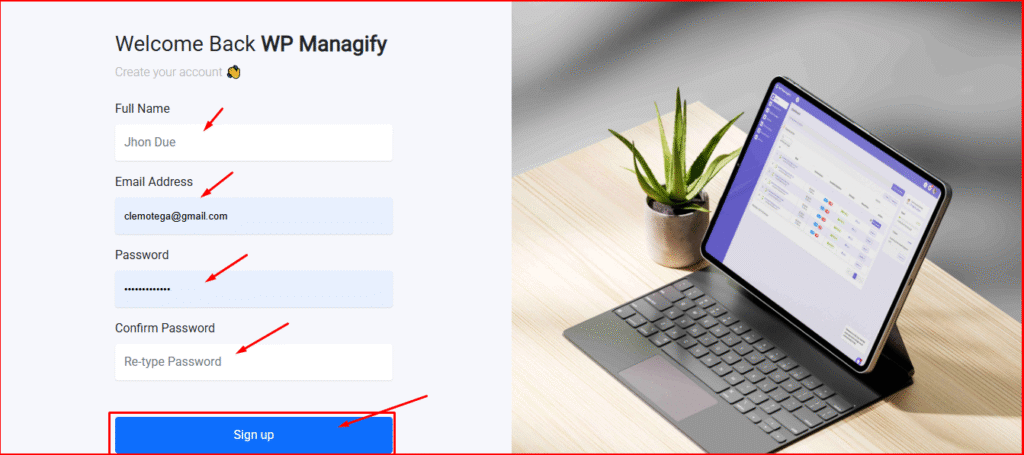
Enter your email and password to sign in. Click Sign up ” and create a fresh account if you haven’t done so.
Connect WP Managify with your website:
Download the WP plugin to your computer. Then upload it to your WordPress.
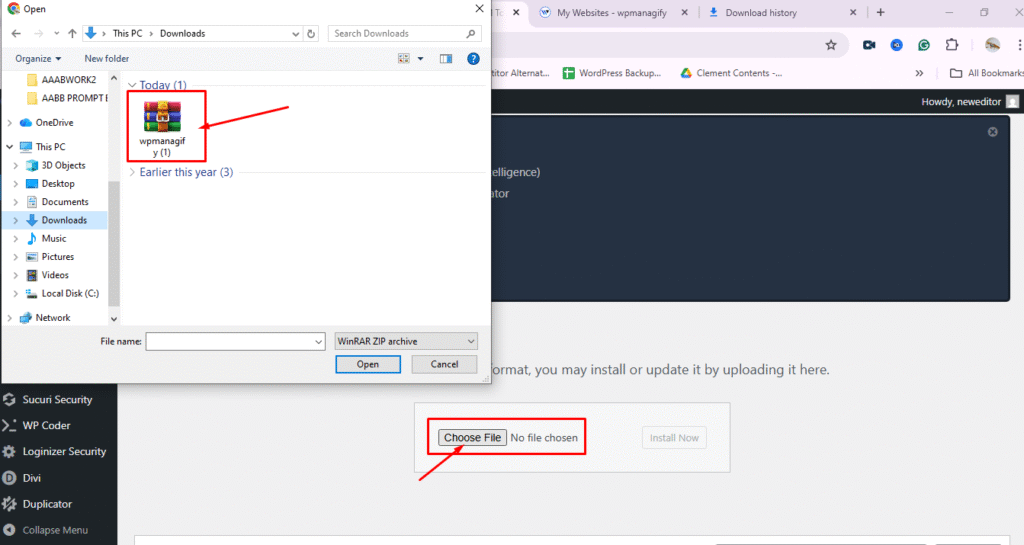
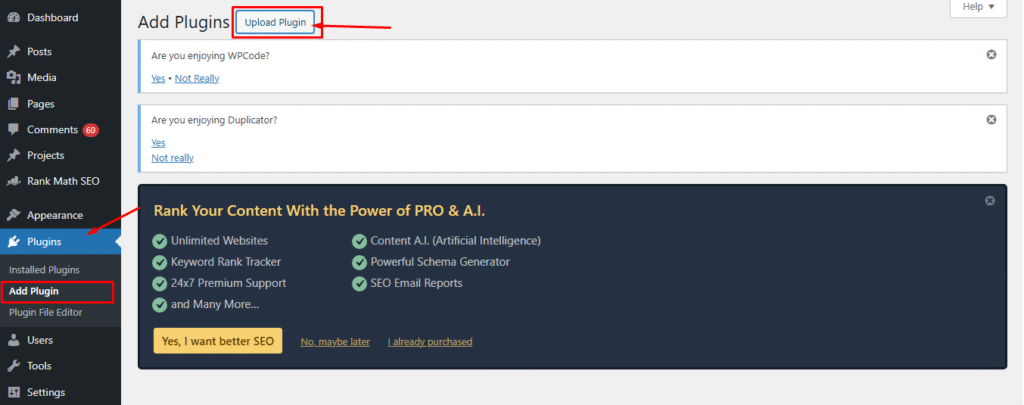
After uploading the plugin, install it on your WordPress. Activate the plugin after installation to kick-start your WordPress backup.
Once you successfully install the WP Managify plugin, visit the platform’s official website. There, you’ll find the linked website displayed on your WP Managify dashboard.
Decide the backup frequency:
You can set up WP Managify to back up your WordPress daily, weekly, or monthly. You can even customize the platform to back up your website on a schedule you choose. 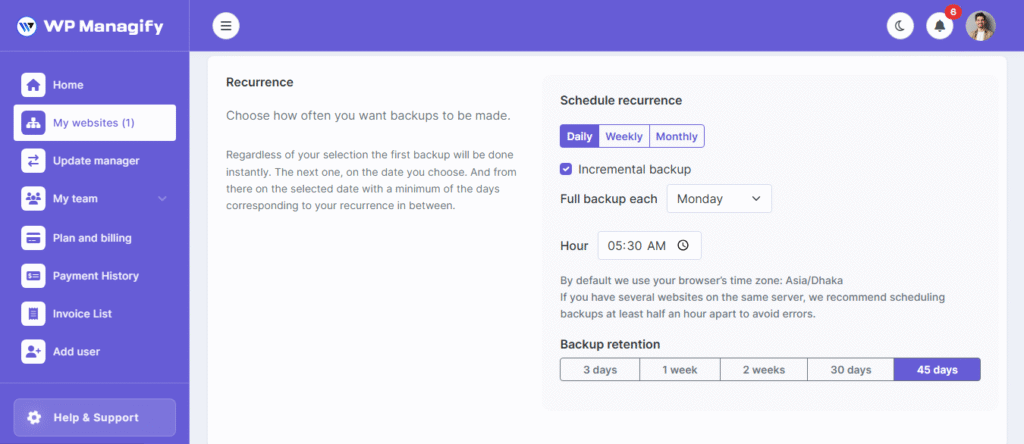 Your store activities should influence your backup schedule.
Consider the backup frequency below based on your online store’s activities:
If you have a high-volume store, consider the backup schedules below:
- Hourly database or real-time backups
- Daily file backups
If you have a medium store, consider the WooCommerce backup frequency below:
- Full backups (every day)
- Weekly backups
If you have a low-volume store, your backup schedule should be:
- Database backups (daily)
- Full website backup (weekly)
It is essential to choose the frequency to backup WooCommerce database, orders, or the entire store. It will help you prevent data loss and reduce downtime.
Match the backup schedule to your online store’s activities to reduce risk.
Pro Tip: Run a full backup when backing up your WooCommerce store for the first time. Consider the full backup as your baseline.
After running a full backup, test your backup in a staging environment. This will help you identify issues in your backup, enabling you to make an informed decision.
Automate ongoing backup for your WooCommerce website after the first backup. WP Managify lets you automate your backups.
WooCommerce backup automation keeps your online store protected, eliminating the need for manual backups.
How To Restore WooCommerce Store (Using WP Managify)
Your backup strategy isn’t complete without a restore plan. Your backup strategy is only complete when your restoration is successful.
Follow the guide below to restore your WooCommerce store.
Step 1: Pick a restore point:
The first step is to decide the restore point. You can choose the point based on the following criteria:
- When the website was last stable
- When the error happened
- When the customer’s order was last stored on the website successfully
Pro Tip: Any restore version you choose should have relevant WooCommerce tables.
Step 2: Restore backup:
Follow the steps below to restore your backup:
- Go to the backup dashboard
- Select the version you want to restore
- Click on “restore.”
- Wait for completion
- Refresh your website
- Test functionality
While some tools only restore WooCommerce orders, some restore only products. WP Managify can restore both.
Step 3: Test your WooCommerce backup before restoring:
You’re eager to restore the backup on your live website. You want your website to be up and running as quickly as possible. But hold on for a moment.
It’s advisable to test backups before restoration. Restore the backup to a staging environment first to check for any issues with the backup file.
Endeavor to test:
- Order tables
- Checkout flow
- Inventory values
- Product values
- Login and account pages
- Payment gateway configurations
Testing is essential to determine the state of the back. If everything works fine, you can proceed with the restoration. Apply the restore to your live website.
Common Mistakes To Avoid During WooCommerce Backup
Most store owners make several mistakes when they back up WooCommerce orders, the database, or their entire store. They can harm your website, so it’s best to avoid them.
Here are the mistakes:
- Not running restore tests: Never restore a backup on a live website unless you’re sure it will work. Always test restore backups in a staging environment before restoring to the live website. You’ll avoid surprises this way.
- Storing WooCommerce backups on the same server: You’re taking a massive risk with this step. You could lose your website data when the server crashes.
- Using tools that do not recognize WooCommerce tables: This can lead to irreversible data loss. You could lose critical data, such as customer orders, product details, and customer records. A full website restoration will be impossible under these circumstances.
- Relying solely on hosting backups: You’re taking a significant risk. You could lose your website data should anything happen to your host.
- Not backing up WooCommerce database: Your WooCommerce database is your store’s lifeblood. It contains its customer profiles, order history, and configuration. You can recover your store’s database after a crash if you fail to back up when you have the chance. The loss of your store’s database can damage your business reputation and cause significant revenue loss.
- Backing up your WooCommerce store once per month: Are you fond of backing up your store once a month? You’re making a mistake. A full monthly backup isn’t a terrible decision. However, it may not be the best decision given your store’s activities. A high-volume store requires a daily incremental backup, after a full backup. You can check the backup frequency we discussed earlier.
- Ignoring warning signs from backup tools: Backup tools like WP Managify provide information on backup and website health. You can use the information to ensure your website runs smoothly. Ignoring warning signs is a considerable risk. You could face irreversible damage to your backups.
Conclusion
WooCommerce backup is a critical process for every online store. Failure to back up can lead to irreversible damage to your store and reputation. Businesses never recover from such losses.
Hackers are always targeting WordPress websites. There is a possibility of accidental data loss or data corruption. These things can lead to costly downtime. They can cause customers to lose trust in your online store and prefer your competitors instead.
With a robust backup strategy and the right WooCommerce store backup tool, you can keep your store running efficiently, smoothly, and consistently. External backup tools like WP Managify offer secure, efficient backup solutions for WooCommerce stores. You can choose a backup type and automate backups to run effortlessly.
A solid, efficient backup strategy is vital to ensuring your store’s safety. So, decide your online store backup strategy and tool wisely.
WooCommerce Backup and Restore FAQ
What WooCommerce backup plugin is best for my store?
While there are myriad options, WP Managify, though new, has been gaining traction. In addition to efficient website backups, the platform supports uptime monitoring and health and safety checks, including professional reports for agencies and freelancers.
Is WooCommerce backup free?
You can back up WooCommerce for free. Management platforms like WP Managify offer free backup plans. However, the paid plans offer higher storage and are preferred by WooCommerce store owners.
How often should I backup the WooCommerce store?
It depends on the kind of store you’re operating. If you’re operating a high-volume store, real-time or hourly backup is a wise decision. For a moderate-volume store, you can run a daily backup. For a low-activity online store, you can run daily and full weekly backups.
Can I recover my WooCommerce store if the server crashes completely?
Yes, you can, provided you stored the backup externally, not on the same server. If stored externally, you can restore your backup to another hosting provider. Your data will remain intact, and your store will operate smoothly.
Why do I need to back up my WooCommerce store?
Backups are crucial. They serve as your safety net, making it easier to restore your WooCommerce store when things go wrong. Whether it’s a cyber attack, accidental data deletion, update failure, or data corruption, you won’t lose your website when you backup properly. With one click, you can easily restore your WooCommerce website to its previous working state, reducing downtime and reputational damage.
How often should I backup my WooCommerce store?
Since a WooCommerce store falls into the high-activity website category, backups should be regular. You should create a full backup, followed by an incremental backup. You need to schedule a backup to run daily so you can copy customers’ orders and any changes made on the website. Always back up your WooCommerce store before every update.
Do I require technical skills to manage backups?
You don’t need technical skills when using automatic backup platforms like WP Managify, BackWPup, and MainWP. These platforms boast intuitive interfaces and make backups a breeze. However, you’ll need technical skills if you’re using manual backup via phpMyAdmin and FTP.
What is the best backup solution for a WooCommerce store?
The best backup solution is a platform or backup method that is reliable and improves your online store’s security. And that is what an automatic backup system offers. You can use a centralized WordPress backup platform like WP Managify or BackWPup, which offers a centralized dashboard. Other automatic backup strategies include using backup plugins such as UpdraftPlus, Duplicator, and BlogVault.
Are free backup tools safe for my WooCommerce store?
Yes, free tools are safe, but they may not entirely secure your website. However, many centralized WordPress backup platforms and backup plugins offer free plans. But the free plan comes with limited storage space. You can upgrade to the premium version to access advanced features and secure your WooCommerce store.
Can I back up my WooCommerce store without a plugin?
Yes, you can back up your WooCommerce store without a plugin. This would involve using the manual backup method via FTP and phpMyAdmin. The FTP is for files, while phpMyAdmin is for the database. While manual backups are inexpensive, they require technical knowledge. This method is also prone to errors that can mess up your website.

&media=https://wpmanagify.com/wp-content/uploads/2025/12/WooCommerce-Backup.png)