
Setting up automated WordPress backup is a critical security measure. Why? You could unexpectedly lose copies of your website data. A crash or cyberattack could happen at any time, leading to the loss of files, settings, designs, or themes you failed to back up.
Automatic WordPress backup allows you to backup your website regularly without human intervention. With a management platform like WP Managify, which offers several scheduling options, you can set up daily, weekly, or monthly backups or customize your backups.
Automatic backups ensure your site is always safe. It’s a breeze to set up, and you don’t need to put in any work after the first setup. Here, we explain how to automate backups, best practices for keeping your website safe, and more! Keep reading for more.
Why Automated WordPress Backup Matters
Website backup is like keeping an extra key to your house somewhere safe. If your personal key goes missing, you can use the extra one. However, you must keep that extra key somewhere safe.
That’s what backup is all about. It serves as insurance for your website. Thus, even if an unexpected disaster occurs (Such as Plugin conflicts, security breaches, or accidental deletion or crash), your website will remain operational. Backup gives your website a restore point.
Why should you automate WordPress backup? Check out the reasons:
Time-saving:
Time is a luxury that business owners and WordPress management agencies don’t have. From responding to diverse clients to planning and launching marketing campaigns, business owners are always busy.
Automated WordPress backup helps you save time. You don’t need to put in any effort to backup your website after the initial setup.
The management platform does the job for you, while you focus on other aspects of your business that need attention.
Manual WordPress backups are highly time-consuming and demanding. It will require your effort from start to finish. A website crash is a familiar problem with this method.
Keeps your site protected without extra work:
Your website becomes a target for hackers from the moment it comes online. Aside from plugin conflicts, accidental deletion, or theme failure, cyberattacks are a significant issue. These problems can lead to data loss on your website, potentially impacting your business.
Automating backup will save your website from these risks. When you schedule WordPress backup, you backup your website effortlessly. You can create:
- Daily WordPress backup: This setting allows the website management platform to capture regular updates on the website. Use this setting for sites that receive frequent updates.
- Weekly WordPress backup: An important backup setting for websites with less frequent or fewer changes. It will also help to stabilize your website.
- Custom backup schedule: Use this backup setting for websites with a specific workflow.
Speedy website recovery:
When hackers strike (which can happen to any website), a clean, safe backup will be your saving grace. Imagine the loss you could incur without a backup. Most businesses never fully recover from cyberattacks.
With automatic backup, you can store copies and restore your website to its pre-hacked state effortlessly. You won’t lose customer data or recent content. You won’t join the league of website owners that pay ransom to hackers.
Automatic backup is cost-effective:
Do you know what it would cost to free up a hacked website? It could take a considerable sum of money. Even if you are against granting the hackers’ request, you’ll still spend a reasonable sum to restore your website to its pre-hacked state.
The bottom line is that automatic backups will save your website. It’s a cheaper website security measure compared to paying ransoms to regain control of a hacked website. Aside from hacking, issues like server crashes, theme failures, accidental data deletions, and plugin conflicts can destroy a website.
Most management platforms, like WP Managify, offer an automated WordPress backup free plan. You can use the free plan to back up your website and upgrade as your storage needs grow.
In a nutshell, it’ll cost you far less to set up automatic backup than to try to restore your website after a disaster.
Automation allows you to restore your website instantly and effortlessly. You stay in control of the situation when others are panicking following a disaster.
How Automated WordPress Backup Works
Automatic WordPress website backup follows a simple process. For instance, You connect your WordPress website to a centralized management dashboard or plugin. You can also use your hosting provider.
The platform copies your website files and databases. Then it stores copies of the databases and files without human intervention.
When you auto backup WordPress, you only need to set your schedule once. The platform will handle the rest. That’s how it works.
The WordPress backup plugin operates in the background. It will check your schedule and run at the scheduled time. It will create copies of your website databases and files, and help you store them safely.
Getting Prepared: What You Require to Auto Backup WordPress
Before you kick off your website backup, here is what you need.
Admin access to the WordPress website: Log in to the WordPress website and connect your management platform (WP Managify) to it. You can’t backup a website you haven’t connected to Managify.
Scheduling features: Your backup management tool of choice should support backup scheduling.
You should be able to schedule daily, weekly, or monthly backups, or customize your backup schedule to meet your website’s needs. WP Managify has scheduling features.
Enough storage: Your backup tool should have sufficient storage. That’s why it is beneficial to upgrade to a pro plan if you’re already using the free plan on WP Managify. The free plan has limited storage space.
Automatic WordPress Backup Setup: The Different Methods
You can auto backup WordPress using different strategies. The main focus of automatic backup is to enable you store copies of your website without doing the work manually.
Here are the different ways to setup automated WordPress backups for your website:
- Using a centralized management platform: e.g., WP Managify
- Using backup plugin: the options include UpdraftPlus, BackWPup, VaultPress, and Duplicator
- Using web hosting provider: Bluehost, WP Engine.
Method 1: Using centralized management platform (Recommended):
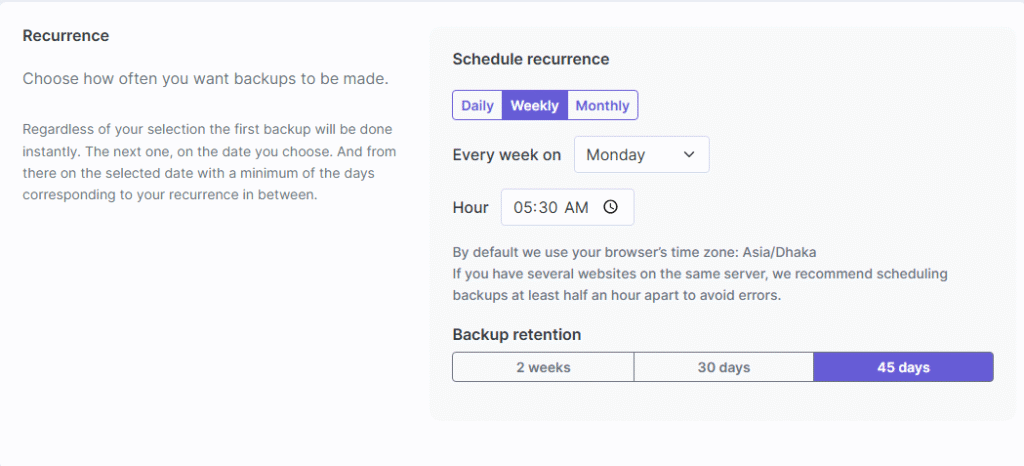
Centralized management platforms like WP Managify allow you to schedule WordPress website backups. You can schedule backups to run daily, weekly, or monthly, or create a custom backup schedule.
Choose an automatic WordPress site backup schedule that aligns with your business needs. Here is a breakdown of the different automatic backup setups and how they match different website needs.
Daily WordPress backup setup:
This type of automatic backup schedule is suitable for active websites. These include blogs, shops, news websites, and other content-heavy platforms. Because websites in this category get constant updates, they need daily protection.
What does the daily WordPress backup schedule capture?
The daily backup captures important site data such as:
- Latest posts
- User registrations
- Settings updates
- Comments on posts
- Orders placed by customers
With the daily backup schedule, your website will recover completely when you restore the backup. You will lose none of your website data even after a major disaster.
Weekly WordPress backup setup:
The weekly backup schedule is for low-activity websites. These include websites that don’t get daily updates.
A stable site that has a handful of content can choose the weekly backup schedule. Additionally, the weekly backup uses less storage space.
Custom backup setup:
Some websites require special timing. They need a custom backup schedule.
You can create a custom backup for websites in this category based on:
- High-traffic hours
- Low-traffic hours
- Product launch
- Critical updates
- Marketing campaigns
The custom backup WordPress schedule will help your website maintain stability. It will help ensure you backup your website at the most ideal times.
Here is a quick summary of when to use each WordPress backup schedule.
| Daily Backup Schedules | Weekly Backup Schedules | Custom Backup Schedules |
Choose daily backup if you:
|
Choose weekly backup if you:
|
Choose a custom backup schedule if you:
|
It is essential to choose a proper backup schedule for your WordPress website. Choose a schedule that matches your activity. Protect your website data and make recovery a breeze.
Method 2: Set up automated backup via a backup plugin:
Here’s how to set up automated backup on the UpdraftPlus backup plugin. The process is also similar and straightforward for the other backup plugins.
- Find backup plugin: Login to your WordPress dashboard and search for the named plugin. You can use the UpdraftPlus plugin to automate your backup.
- Install and activate: Once you find the plugin, click “install” to add it to your WordPress site. After installing, activate the backup plugin.
- Configure plugin settings: Visit the plugin’s settings page to configure the backup plugin.
- Set backup schedule: You can choose your backup schedule from the plugin’s settings page. Decide your website’s backup schedule based on your website’s activities and needs.
Pro Tip: On the plugins settings page, you can schedule the plugin to backup your WordPress files and databases daily, weekly or monthly. Daily automatic backup is ideal for high activity websites.
- Link backup plugin to remote storage: Most of the backup plugins supports remote storage facilities. These include remote storages like Dropbox, Google Drive and Amazon S3. Choose a plugin that supports remote storage to safeguard your website data.
- Save backup settings: After setting backup schedule, you should run your first backup manually. The essence is to test if everything is working perfectly.
Method 3: Use web host backup service:
Many web hosting services help their users automate their backups. While this method can seem beginner-friendly, it poses serious risk. You could lose your website data if anything happens to your web host.
Here is how it works:
- Access your web hosting account’s control panel (cPanel, hPanel).
- Go to the “Backup Manager” or “Backups” section
- Automatic backup configuration: Check if automatic backup has been enabled. If it hasn’t, you can enable it. Your web hosting service provider will take care of the storage and backup scheduling for your website.
Pro Tip: Understand how backup restoration works in the web hosting service provider you’re using. Another thing you need to understand is how long your hosting provider is willing to store the backup files.
Storing backup files on the same server is a risky thing to do. You could lose your website data if anything happens to that server.
The best option has always been to use a centralized management system that lets you backup, and restore backups without logging into the website dashboard. You can even backup and restore multiple WordPress websites from a single dashboard, making it easier to manage multiple WordPress websites.
Testing and Restoring Your Automated WordPress Backups
Backing up your WordPress website data is a smart move. However, your backup is only valuable if it can restore appropriately.
How can you ensure your backup is in good shape? You can figure out via occasional testing.
Your occasional testing can be once or twice per month, depending on how much time you can spare to test your backups.
Here are tips for testing your backups.
- Restore your backup to a staging website
- Check if the website is loading properly
- Check your files and database to confirm if they match
- If there are errors, fix them. You don’t want a simple error to affect a real recovery
Automating WordPress Website Backup: The Two Main Components
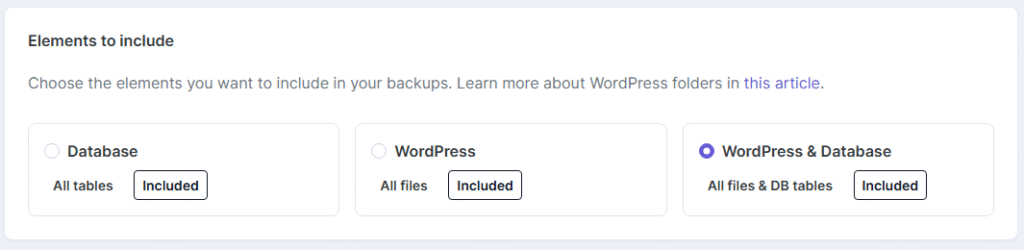
Every WordPress website has two components: files and the database.
Is it necessary to backup both? Yes! You need to backup both components if you want a full restore of your WordPress website.
Here is what each component includes:
The Files:
- Plugins
- Themes
- Core files
- Media uploads
- Configuration files
The Database:
- Posts
- Users
- Comments
- Settings
- Orders
- SEO data
Whether you’re automating WordPress backup free or paid, both plans allow you to create and store copies of your files and database.
Common Mistakes To Avoid When You Automate Your WordPress Backup
There are mistakes you should avoid when automating WordPress website backup. Here are the mistakes:
- Don’t store your backups on your live server.
- Use strong passwords when using an external management platform like WP Managify to backup your website.
- Don’t rely on monthly backups. You may lose a considerable amount of site data if a disaster strikes before your monthly backup schedule.
- Don’t skip restore tests. Test your backups to ensure there won’t be issues during restoration.
- Use a reliable Automatic WordPress backup tool for your website. WP Managify has been a reliable platform since its inception.
Best Practices for Scheduled WordPress Website Backup
- Incremental backups are proper for large websites
- Check your scheduled logs every week.
- Clean up old backups to free up space for new ones.
- Test-restore your backups occasionally.
- Store your backups in a safe place. WP Managify is a platform that enables WordPress website owners to store their website data externally.
You will strengthen your WordPress backup strategy by following these tips.
Automated WordPress Backup For WooCommerce Websites
WooCommerce stores change regularly. Customers register every day. Orders get updated every minute.
The bottom line is that WooCommerce websites require steady backup schedules. Follow the tips below:
- Consider real-time backups
- Use incremental website backups
- Skip heavy backup tasks during peak hours
Using WP Managify is a good strategy to protect your ecommerce store without slowing it down. You can use the tips shared to back up your store effectively.
Automated WordPress Backup For Membership Websites
You can automate your membership website backup to protect your website and business. With automation, you’ll have copies of your website data saved, even as new members join your platform.
Membership websites store important data such as user profiles and subscriptions. Follow the tips below to automate your membership website’s backup.
- Enable occasional database backups.
- Enable daily or hourly backup scheduling.
- Use a strong password (if you’re using an external management platform like WP Managify).
- Test your restores thoroughly.
Backing up your membership site this way will help protect sensitive user data and keep your business running.
Conclusion
Setting up an automated WordPress backup is an important security measure to protect your website. If you’re using a tool like WP Managify, all you need to do is connect your website and setup the backup. Once done, the system runs on its own.
You can choose different schedules. You can choose the daily, weekly, or custom schedule. Restoring backups is also a breeze when you automate your backup with the right tool.
Automated backup for WordPress protects your website and business, and gives you peace of mind. It makes managing multiple WordPress websites a breeze.
FAQ’s About Automated WordPress Website Backup
Where should I store my automated backups?
Use an external management platform, such as WP Managify. In addition to backup automation, the platform offers security scans and other features to keep your website active.
Off-site storage platforms are also beneficial for backup. They help to keep your backups safe.
Is it necessary to back up both the files and the database?
Yes, you need to backup files and the database to make a complete restoration possible. The file stores your website’s media and themes, while the database stores settings and posts. You’ll require both components for a full website restoration.
How often should I automate WordPress backup?
If you have an active website, use the daily backup schedule. If you have a small or stable website, consider the weekly backup schedule. The custom backup schedule supports targeted workflows.
Will auto backup WordPress using WP Managify slow down my website?
WP Managify is an external management platform, so it won’t slow down your website. Using such external management tools enables you to backup your website even during peak hours. It won’t slow down your website.
What is the best plugin for automatic WordPress backup?
Having tried several backup plugins, WP Managify is a top choice. Aside from being affordable, it gets the job done. Additionally, WP Managify offers more than WordPress backup solutions. It offers health checks, monitors uptime, and lets you manage multiple websites with ease. WP Managify installation is also a breeze.

&media=https://wpmanagify.com/wp-content/uploads/2025/12/Automated-Wordpress-Backup.png)